
Organizing Navigation with Multiple Files
What We Will Cover
This lesson covers how to organize an Android app across multiple files and how to manage different kinds of data between screens. You will see a recommended package structure, how to separate navigation from UI and business logic, and how screen-specific state and shared state work together.
Why Separate Files?
Keeping all code in a single file makes an app hard to navigate, debug, and extend. Splitting code into multiple files by responsibility improves clarity and maintainability. Benefits include:
- Easier to locate code — Navigation lives in one place, each screen in its own file, ViewModels grouped by purpose.
- Easier to fix bugs — When something breaks, you know which module or screen to inspect.
- Better for teamwork — Different developers can work on different screens or layers without constant merge conflicts.
- Single responsibility — Each file has a clear purpose (e.g., one file for routes, one per screen).
- Easier testing — You can test ViewModels and navigation logic separately from the UI.
Recommended File Structure
Below is a typical structure for a Compose app that uses navigation and ViewModels. Routes and navigation logic live in one place; each screen has its own package and optional ViewModel.
app/
├── src/
│   ├── main/
│   │   ├── java/
│   │   │   └── com.example.myapp/
│   │   │       ├── MainActivity.kt              // App entry point
│   │   │       ├── navigation/                  // Navigation graph and routes
│   │   │       │   ├── AppNavigation.kt         // NavHost and composable destinations
│   │   │       │   └── NavigationRoutes.kt      // Route constants
│   │   │       ├── viewmodels/                  // State and business logic
│   │   │       │   ├── shared/
│   │   │       │   │   └── SharedViewModel.kt   // State shared across screens
│   │   │       │   └── screens/
│   │   │       │       ├── HomeViewModel.kt     // Home screen state
│   │   │       │       ├── ProfileViewModel.kt  // Profile screen state
│   │   │       │       └── SettingsViewModel.kt // Settings screen state
│   │   │       └── screens/                     // UI composables per screen
│   │   │           ├── home/
│   │   │           │   └── HomeScreen.kt
│   │   │           ├── profile/
│   │   │           │   └── ProfileScreen.kt
│   │   │           └── settings/
│   │   │               └── SettingsScreen.kt
Understanding the Structure
- navigation/ — Centralizes routing and the NavHost.
AppNavigation.kt— Defines the NavHost and composable destinations; contains the navigation graph.NavigationRoutes.kt— Holds route name constants (e.g."home","profile/{userId}") so they are defined once and reused.
- viewmodels/ — Holds state and logic that survives configuration changes.
shared/— ViewModels used by more than one screen (e.g. current user).screens/— ViewModels used by a single screen (e.g. profile data for one user).
- screens/ — One package per screen; each contains the composable(s) for that screen and can use a screen-specific or shared ViewModel.
Required Gradle Dependencies
As discussed earlier in the navigation chapter, add the following dependencies to your project.
NOTE: The lifecycle-viewmodel-compose dependency is also required for ViewModels to work.
Update Version Catalog (gradle/libs.versions.toml)
[versions]
    # ... existing versions ...
    navigation-compose = "2.7.7"
    lifecycle-viewmodel-compose = "2.7.0"

    [libraries]
    # ... existing libraries ...
    androidx-navigation-compose = { group = "androidx.navigation", name = "navigation-compose", version.ref = "navigation-compose" }
    androidx-lifecycle-viewmodel-compose = { group = "androidx.lifecycle", name = "lifecycle-viewmodel-compose", version.ref = "lifecycle-viewmodel-compose" }
Update App Dependencies (app/build.gradle.kts)
dependencies {
    // ... existing dependencies ...

    // ViewModels and Navigation
    implementation(libs.androidx.lifecycle.viewmodel.compose)
    implementation(libs.androidx.navigation.compose)
}
Understanding the Dependencies
- lifecycle-viewmodel-compose:
- Provides
viewModel()so composables can obtain a ViewModel scoped to the current navigation destination or activity. - Integrates ViewModels with Compose so UI recomposes when state changes.
- Preserves ViewModel state across configuration changes (e.g. rotation).
- Provides
- navigation-compose:
- Provides
NavHost,composable(),rememberNavController(), and related APIs. - Supports type-safe navigation and passing arguments between screens.
- Provides
Understanding Different Types of Data Management
In a multi-screen app you need to decide where state lives and how it is passed. Three common approaches are: screen-specific ViewModels (state for one screen), shared ViewModels (state used by several screens), and navigation arguments (data passed when navigating to a screen).
Screen-Specific ViewModels
Use a ViewModel scoped to one screen when the state is only needed on that screen (e.g. form fields, loading flag, or data loaded for that screen only):
// viewmodels/screens/HomeViewModel.kt
class HomeViewModel : ViewModel() {
    var screenTitle by mutableStateOf("Home")
        private set

    fun updateTitle(newTitle: String) {
        screenTitle = newTitle
    }
}

// screens/home/HomeScreen.kt
@Composable
fun HomeScreen(
    homeViewModel: HomeViewModel = viewModel(),
    onProfileClick: (String) -> Unit,
    onSettingsClick: () -> Unit
) {
    Column(
        modifier = Modifier.fillMaxSize(),
        verticalArrangement = Arrangement.Center,
        horizontalAlignment = Alignment.CenterHorizontally
    ) {
        Text(text = homeViewModel.screenTitle)
        Button(onClick = { onProfileClick("Scott Shaper") }) {
            Text("Go to Profile")
        }
        Button(onClick = onSettingsClick) {
            Text("Go to Settings")
        }
    }
}
Shared ViewModels
Use a shared ViewModel when multiple screens need to read or update the same state (e.g. current user, app-wide settings):
// viewmodels/shared/SharedViewModel.kt
class SharedViewModel : ViewModel() {
    var currentUser by mutableStateOf(null)
        private set

    fun updateUser(user: User) {
        currentUser = user
    }

    fun clearUser() {
        currentUser = null
    }
}
Navigation Parameters
Use navigation arguments when you need to pass a specific value to the destination screen (e.g. user id, item id). The value is read from the route or back stack entry when the screen is shown:
// When navigating from Home to Profile
onProfileClick("Scott Shaper")  // Passing a specific name

// The Profile screen receives this name
@Composable
fun ProfileScreen(
    userId: String = "Unknown",  // Receiving the passed name
    // ... other parameters
) {
    // Use the userId to load the right profile
    LaunchedEffect(userId) {
        profileViewModel.loadProfile(userId)
    }
}
When to Use Each Approach
| Type | When to Use | Example |
|---|---|---|
| Screen-Specific ViewModels | State used only on one screen | Form state, screen-specific loading/data |
| Shared ViewModels | State needed on multiple screens | Current user, app settings, cart |
| Navigation Parameters | Pass a value when navigating to a screen | User id, product id, search query |
Complete Example Implementation
The following example ties together the file structure, navigation, and the three data approaches: a Home screen, a Profile screen (with a navigation argument), and a Settings screen, using both screen-specific and shared ViewModels.
1. Define Routes (NavigationRoutes.kt)
Put all your route names in one place so the rest of the app can reuse them and you avoid typos.
// navigation/NavigationRoutes.kt
object NavigationRoutes {
    const val HOME = "home"
    const val PROFILE = "profile/{userId}"     // userId is a path argument
    const val SETTINGS = "settings"
}
What each part does:
- Simple routes — No extra data is sent when you navigate:
When you go to Home or Settings, you just use the route name (e.g.const val HOME = "home" const val SETTINGS = "settings""home"). - Route with a placeholder — The profile screen needs to know which user:
const val PROFILE = "profile/{userId}"{userId}is a slot. When you navigate, you replace it with a real value. For example,"profile/Scott Shaper"or"profile/John". The Profile screen will receive that value so it can load the right user's data.
2. Create ViewModels
We use one shared ViewModel (for data that multiple screens need) and one ViewModel per screen where we need screen-only state.
SharedViewModel — Stores the currently logged-in user. Any screen can read or update it.
// viewmodels/shared/SharedViewModel.kt
class SharedViewModel : ViewModel() {
    var currentUser by mutableStateOf(null)
        private set

    fun updateUser(user: User) {
        currentUser = user
    }

    fun clearUser() {
        currentUser = null
    }
} currentUser— The user who is logged in (ornullif no one is).mutableStateOfmeans when this changes, the UI automatically updates.updateUser(user)— Call this to “log in” a user (e.g. from the Settings screen).clearUser()— Call this to “log out.”
HomeViewModel — State that only the Home screen cares about.
// viewmodels/screens/HomeViewModel.kt
class HomeViewModel : ViewModel() {
    var screenTitle by mutableStateOf("Home")
        private set
    var isLoading by mutableStateOf(false)
        private set

    fun updateTitle(newTitle: String) {
        screenTitle = newTitle
    }

    fun loadHomeData() {
        isLoading = true
        // Simulate loading data
        isLoading = false
    }
}screenTitle— The text shown at the top of the Home screen.isLoading—truewhile data is loading; the UI can show a spinner.
ProfileViewModel — State for the Profile screen. It loads profile data for a specific user.
// viewmodels/screens/ProfileViewModel.kt
class ProfileViewModel : ViewModel() {
    var profileData by mutableStateOf(null)
        private set
    var isLoading by mutableStateOf(false)
        private set

    fun loadProfile(userId: String) {
        isLoading = true
        // Simulate loading profile data for the specific user
        profileData = ProfileData(
            userId = userId,
            description = "Profile for $userId - This is a sample profile description."
        )
        isLoading = false
    }
}
loadProfile(userId: String)— You pass the user id (e.g. from the route). The ViewModel then loads (here, simulates) that user’s profile and stores it inprofileData.
3. Create Screen Composables
Each screen is a composable that receives the ViewModels and navigation callbacks it needs:
// screens/home/HomeScreen.kt
@Composable
fun HomeScreen(
    homeViewModel: HomeViewModel = viewModel(),
    sharedViewModel: SharedViewModel = viewModel(),
    onProfileClick: (String) -> Unit,
    onSettingsClick: () -> Unit
) {
    Column(
        modifier = Modifier.fillMaxSize(),
        verticalArrangement = Arrangement.Center,
        horizontalAlignment = Alignment.CenterHorizontally
    ) {
        Text(text = homeViewModel.screenTitle)

        if (homeViewModel.isLoading) {
            CircularProgressIndicator()
        }

        // Show shared user information if available
        sharedViewModel.currentUser?.let { user ->
            Text("Welcome ${user.name}!")
            Text("Email: ${user.email}")
        }

        Button(onClick = { onProfileClick("Scott Shaper") }) {
            Text("Go to Profile")
        }
        Button(onClick = onSettingsClick) {
            Text("Go to Settings")
        }
    }
}

// screens/profile/ProfileScreen.kt
@Composable
fun ProfileScreen(
    userId: String = "Unknown",  // This receives the name passed from Home
    profileViewModel: ProfileViewModel = viewModel(),
    sharedViewModel: SharedViewModel = viewModel(),
    onHomeClick: () -> Unit,
    onSettingsClick: () -> Unit
) {
    // Load profile data for the specific user when the screen appears
    LaunchedEffect(userId) {
        profileViewModel.loadProfile(userId)
    }

    Column(
        modifier = Modifier.fillMaxSize(),
        verticalArrangement = Arrangement.Center,
        horizontalAlignment = Alignment.CenterHorizontally
    ) {
        Text("Profile Screen")

        if (profileViewModel.isLoading) {
            CircularProgressIndicator()
        } else {
            profileViewModel.profileData?.let { profile ->
                Text("User: ${profile.userId}")
                Text(profile.description)
            }
        }

        // Show shared user information
        sharedViewModel.currentUser?.let { user ->
            Text("Shared User: ${user.name}")
        }

        Button(onClick = onHomeClick) {
            Text("Go to Home")
        }
        Button(onClick = onSettingsClick) {
            Text("Go to Settings")
        }
    }
}

// screens/settings/SettingsScreen.kt
@Composable
fun SettingsScreen(
    sharedViewModel: SharedViewModel,
    onHomeClick: () -> Unit,
    onProfileClick: (String) -> Unit
) {
    Column(
        modifier = Modifier.fillMaxSize(),
        verticalArrangement = Arrangement.Center,
        horizontalAlignment = Alignment.CenterHorizontally
    ) {
        Text("Settings Screen")

        // Show current user information
        sharedViewModel.currentUser?.let { user ->
            Text("Current User: ${user.name}")
            Text("Email: ${user.email}")
        }

        // Button to login a sample user
        Button(
            onClick = {
                val sampleUser = User(
                    id = "1",
                    name = "John Doe",
                    email = "john.doe@example.com"
                )
                sharedViewModel.updateUser(sampleUser)
            }
        ) {
            Text("Login Sample User")
        }

        // Button to go to profile using shared user name
        Button(
            onClick = {
                onProfileClick(sharedViewModel.currentUser?.name ?: "Unknown")
            }
        ) {
            Text("Go to Profile")
        }

        Button(onClick = onHomeClick) {
            Text("Go to Home")
        }
    }
}
What each screen does (with key code):
- HomeScreen — Gets both ViewModels with
viewModel(). It shows the home title and, if someone is logged in, a welcome message. When the user taps a button, it calls the navigation callbacks:
So "Go to Profile" passes the stringButton(onClick = { onProfileClick("Scott Shaper") }) { ... } Button(onClick = onSettingsClick) { ... }"Scott Shaper"; the navigation layer will build the route"profile/Scott Shaper". "Go to Settings" just callsonSettingsClick()with no argument. - ProfileScreen — Receives
userIdfrom the route (e.g."Scott Shaper"). When the screen appears, it loads that user's profile:
So the correct profile is shown. It also shows the shared user name if set and has buttons to go Home or Settings.LaunchedEffect(userId) { profileViewModel.loadProfile(userId) } - SettingsScreen — Uses only the shared ViewModel. It can "log in" a sample user and navigate to that user's profile:
sharedViewModel.updateUser(sampleUser)  // other screens now see this user
onProfileClick(sharedViewModel.currentUser?.name ?: "Unknown")  // go to Profile for current user
4. Set Up Navigation (AppNavigation.kt)
AppNavigation defines the NavHost and wires each route to its screen, passing the shared ViewModel and extracting navigation arguments where needed:
@Composable
fun AppNavigation() {
    val navController = rememberNavController()
    val sharedViewModel: SharedViewModel = viewModel()

    NavHost(navController = navController, startDestination = NavigationRoutes.HOME) {
        // Home screen
        composable(NavigationRoutes.HOME) {
            HomeScreen(
                sharedViewModel = sharedViewModel,
                onProfileClick = { userName ->
                    // Navigate to profile with a specific user name
                    navController.navigate("profile/$userName")
                },
                onSettingsClick = {
                    navController.navigate(NavigationRoutes.SETTINGS)
                }
            )
        }

        // Profile screen with navigation parameter
        composable(
            route = NavigationRoutes.PROFILE,  // "profile/{userId}"
            arguments = listOf(
                navArgument("userId") {
                    type = NavType.StringType  // The userId is a string
                }
            )
        ) { backStackEntry ->
            // Extract the userId from the navigation arguments
            val userId = backStackEntry.arguments?.getString("userId") ?: "Unknown"

            ProfileScreen(
                userId = userId,  // Pass the extracted userId to ProfileScreen
                sharedViewModel = sharedViewModel,
                onHomeClick = { navController.navigate(NavigationRoutes.HOME) },
                onSettingsClick = { navController.navigate(NavigationRoutes.SETTINGS) }
            )
        }

        // Settings screen
        composable(NavigationRoutes.SETTINGS) {
            SettingsScreen(
                sharedViewModel = sharedViewModel,
                onHomeClick = { navController.navigate(NavigationRoutes.HOME) },
                onProfileClick = { userName ->
                    navController.navigate("profile/$userName")
                }
            )
        }
    }
}
What each part does (with snippets):
- Setup — One NavController and one SharedViewModel for the whole app:
So the app starts on the Home screen, and every screen that needs the current user gets the sameval navController = rememberNavController() val sharedViewModel: SharedViewModel = viewModel() NavHost(..., startDestination = NavigationRoutes.HOME) { ... }sharedViewModel. - Home route — When the user is on Home, we show HomeScreen and tell it how to navigate:
So "Go to Profile" becomes a route likeonProfileClick = { userName -> navController.navigate("profile/$userName") }, onSettingsClick = { navController.navigate(NavigationRoutes.SETTINGS) }"profile/Scott Shaper", and "Go to Settings" goes to"settings". - Profile route (with an argument) — The route has a placeholder
{userId}. We declare it and then read the value to pass to ProfileScreen:
So when you navigate tocomposable( route = NavigationRoutes.PROFILE, // "profile/{userId}" arguments = listOf(navArgument("userId") { type = NavType.StringType }) ) { backStackEntry -> val userId = backStackEntry.arguments?.getString("userId") ?: "Unknown" ProfileScreen(userId = userId, ...) }"profile/Scott Shaper",userIdis"Scott Shaper"and ProfileScreen can load that user's data. - Settings route — Same idea as Home: we show SettingsScreen and pass callbacks that call
navController.navigate(...)to go Home or to Profile (with a user name).
5. Main Activity (MainActivity.kt)
The activity is where the app starts. It draws the Compose UI and puts the navigation graph at the root.
class MainActivity : ComponentActivity() {
    override fun onCreate(savedInstanceState: Bundle?) {
        super.onCreate(savedInstanceState)
        setContent {
            MaterialTheme {
                Surface(
                    modifier = Modifier.fillMaxSize(),
                    color = MaterialTheme.colorScheme.background
                ) {
                    AppNavigation()  // Start the navigation system
                }
            }
        }
    }
}
What this code does:
setContent { ... }— This is where we build the Compose UI. Everything the user sees is inside this block.AppNavigation()— This draws the NavHost and all the screens. So when the app opens, the first screen you see is the start destination (Home). Tapping buttons on each screen triggers the callbacks we defined in AppNavigation, which callnavController.navigate(...)to switch screens.
Understanding How Data Flows
Summary of how data moves in this example:
- Home → Profile:
- HomeScreen calls
onProfileClick("Scott Shaper"). - Navigation builds the route
"profile/Scott Shaper". - ProfileScreen receives
userId = "Scott Shaper"from the back stack entry and loads profile data for that user.
- HomeScreen calls
- Home → Settings:
- HomeScreen calls
onSettingsClick(); no arguments are passed. - SettingsScreen uses SharedViewModel to display the current user if one is set.
- HomeScreen calls
- Settings → Profile:
- SettingsScreen can call
onProfileClick(sharedViewModel.currentUser?.name). If the current user is "John Doe", the route becomes"profile/John Doe". - ProfileScreen receives that
userIdand loads the corresponding profile.
- SettingsScreen can call
How the Example Renders
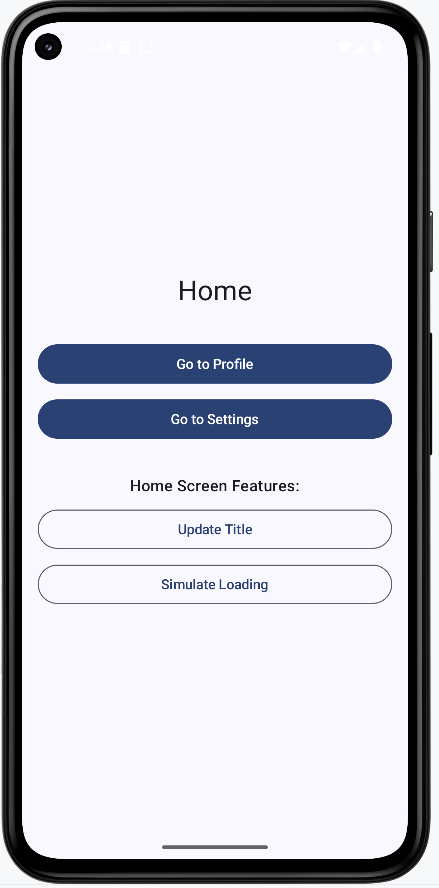
You can try the full example by downloading the NavState project and opening it in Android Studio.
Home screen when the app first loads:
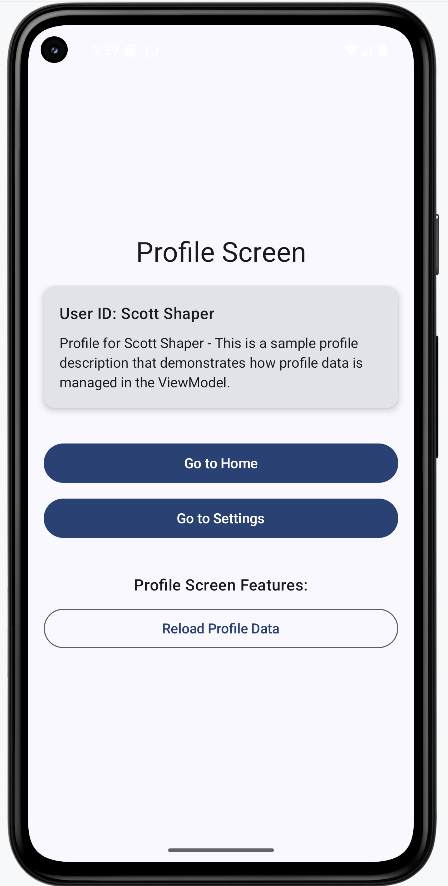
Profile screen when navigating from Home with the user name "Scott Shaper" passed as an argument:
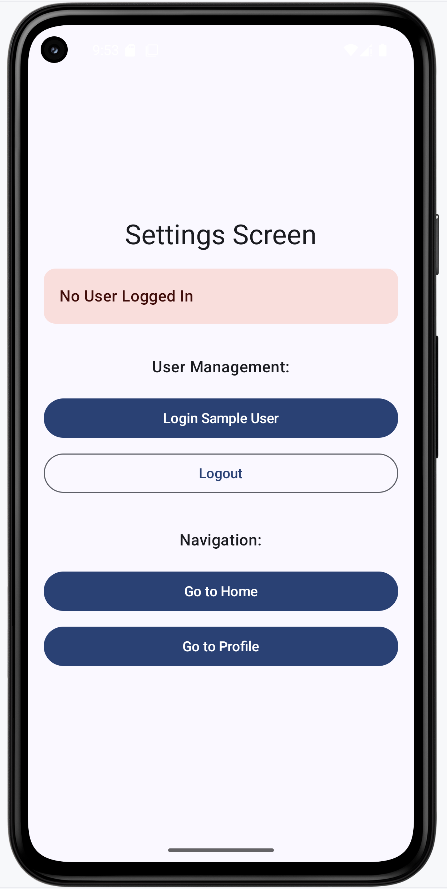
Settings screen when navigating from Home. The user name is not passed to Settings; only the Profile route receives the "Scott Shaper" argument. Settings does not need the user name unless it uses the shared ViewModel.
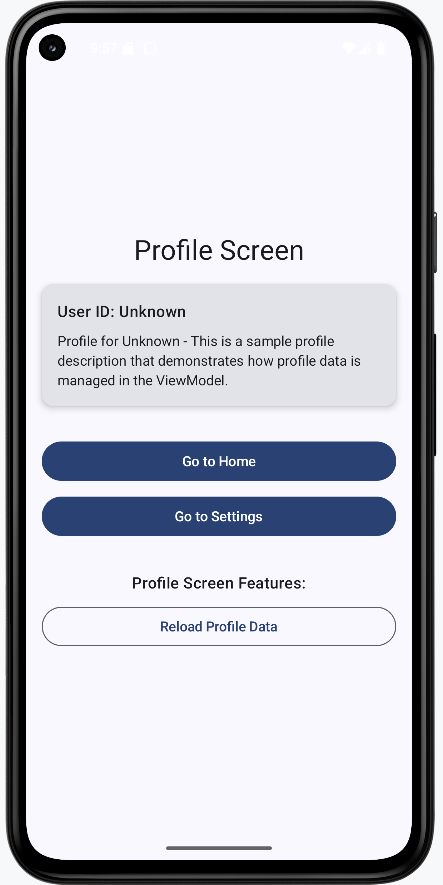
Profile screen when navigating from Settings before any user is logged in. The profile shows "Unknown" because nothing has been set in the shared ViewModel yet.
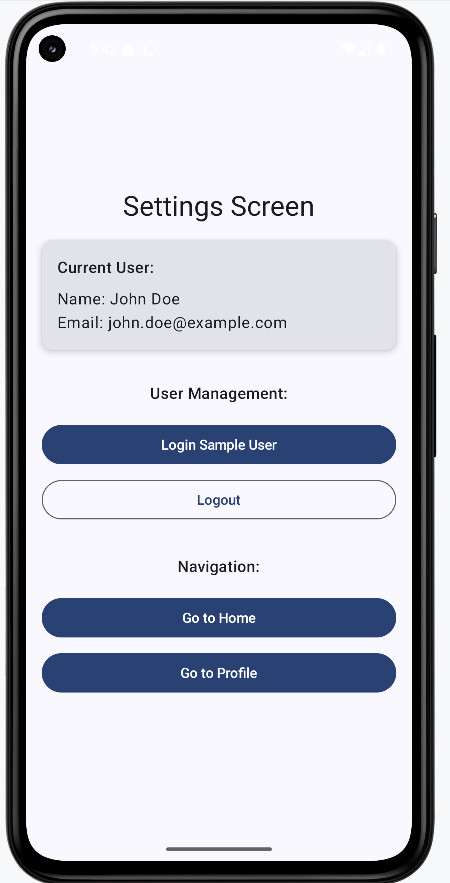
Settings screen after the login button is clicked:
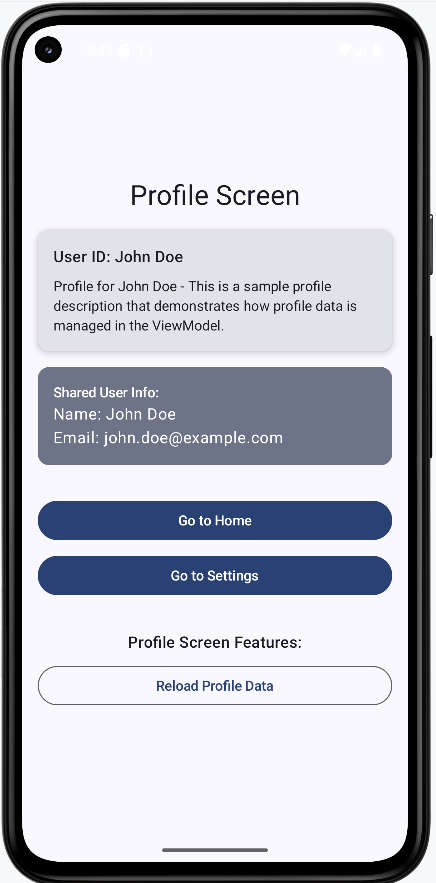
Profile screen when navigating from Settings after login. The profile shows "John Doe" because Settings updated the shared ViewModel with the logged-in user, and the navigation callback passed that user name to the profile route.
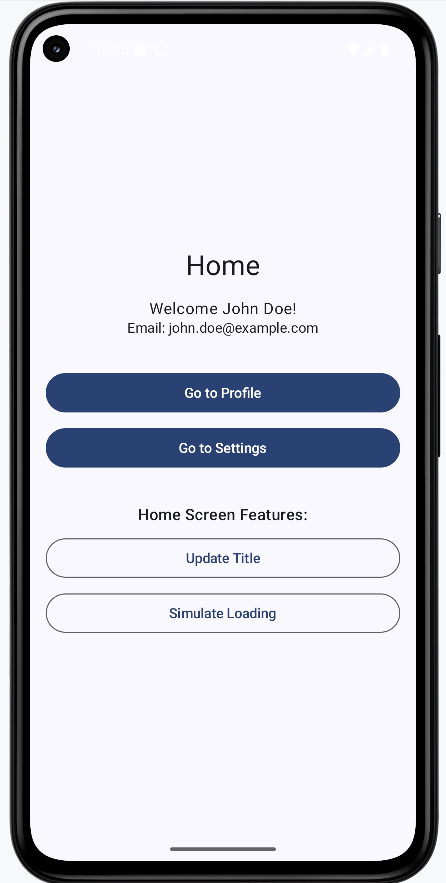
Home screen after login. Home displays "John Doe" from the shared ViewModel. The same would appear whether you navigated to Home from Profile or from Settings.
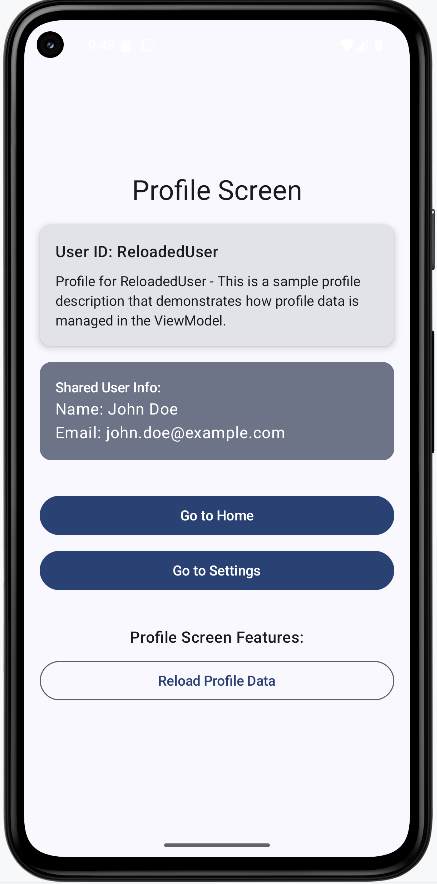
Profile screen after the reload button is clicked. The profile shows "ReloadedUser" and "John Doe": the profile screen updated its local profile data but did not change the shared ViewModel.
Home screen again after the profile reload. Home still shows the same information as before because it reads from the shared ViewModel, which was not modified by the profile screen.
Benefits of This Structure
- Organization:
- Each screen has its own file and (when needed) its own ViewModel.
- Navigation logic is separate from UI and business logic.
- Routes are defined in one place (NavigationRoutes.kt).
- Shared state vs. screen-specific state is clearly separated.
- Maintainability:
- Easier to find and change a specific screen or its logic.
- Changes to one screen are less likely to affect others.
- Clear separation of concerns: UI, navigation, and state.
- State updates are easier to trace and reason about.
- Scalability:
- New screens can be added with their own ViewModels and packages.
- Screen-specific features stay localized.
- Multiple developers can work on different screens or layers.
- Shared state can be introduced when multiple screens need it.
- State Management:
- Clear distinction between shared and screen-specific state.
- ViewModel state survives configuration changes (e.g. rotation).
- State flow is predictable when using ViewModels and navigation arguments consistently.
Best Practices
- File organization:
- Keep route names in a single place (e.g. NavigationRoutes.kt).
- Use consistent naming for files and packages.
- Group each screen and its ViewModel in a dedicated package.
- Keep navigation logic in the navigation layer, not inside screen composables.
- State management:
- Use ViewModels for screen-specific state.
- Use a shared ViewModel for state that multiple screens need.
- Keep state as close as possible to where it is used.
- Use
mutableStateOf(or equivalent) for state that should trigger UI updates.
- Navigation:
- Use type-safe navigation arguments where possible.
- Pass the shared ViewModel only to screens that need it.
- Keep navigation callbacks simple and focused on building the route and calling
navigate. - Use constants for route names to avoid typos and simplify refactoring.
- UI:
- Show loading states during async work.
- Handle errors and empty states in the UI.
- Keep composables focused on display and user input; put logic in ViewModels.
- Use the right state holder for the kind of state you have (screen vs. shared).
Common Mistakes to Avoid
- State management:
- Putting all state in one ViewModel when it should be split (e.g. screen-specific vs. shared).
- Not using a ViewModel for screen-specific state that should survive configuration changes.
- Forgetting to handle loading and error states in the UI.
- Not using reactive state (e.g.
mutableStateOf) for values that should drive UI updates.
- Navigation:
- Scattering route strings across the codebase instead of using a central constants object.
- Not passing the shared ViewModel to screens that need it (or passing it to screens that do not).
- Using string literals for routes instead of constants, which leads to typos and harder refactoring.
- Not reading or validating navigation arguments in the destination screen.
- File organization:
- Putting all composables in one file, which becomes hard to maintain.
- Mixing navigation logic (e.g. NavHost, route definitions) with screen UI code.
- No clear package structure, making it unclear where to add new screens or ViewModels.
- Putting ViewModel logic inside composables instead of separate ViewModel classes.
Tips for Success
- Planning:
- Decide on a file and package structure early in the project.
- Plan where state will live (screen-specific vs. shared) before implementing.
- Document your navigation graph (which screens exist and how they connect).
- Implementation:
- Use constants for route names from the start.
- Keep screen composables focused on UI; put business logic in ViewModels.
- Use ViewModels for state that should survive configuration changes.
- Follow consistent naming for screens, ViewModels, and packages.
- Testing:
- Test ViewModels independently of the UI when possible.
- Verify that state updates correctly and that navigation arguments are received.
- Test navigation flows (e.g. Home → Profile → back, Settings → Profile with shared user).
- Confirm that state survives configuration changes (e.g. rotation) where expected.