
CPS251
Android Development
Light and Dark Mode
Introduction
Light and dark mode let your app automatically change its colors to match the user's device settings. This makes your app easier to use in different lighting and helps save battery on some screens. Jetpack Compose makes it easy to support both modes with Material Design.
When to Use Light and Dark Mode
- You want your app to look good in any lighting
- You want to follow Android best practices
- You want to make your app more accessible and comfortable for users
- You want to save battery on OLED screens
How Light and Dark Mode Work in Compose
- Compose can automatically detect the system's theme (light or dark)
- You can provide different color schemes for each mode
- Material components will use the right colors automatically
Practical Example
@Composable
fun LightDarkModeExample() {
    val isDarkTheme = isSystemInDarkTheme()
    val colors = if (isDarkTheme) darkColorScheme() else lightColorScheme()
    MaterialTheme(colorScheme = colors) {
        Surface(
            modifier = Modifier.fillMaxSize(),
            color = MaterialTheme.colorScheme.background
        ) {
            Column(
                horizontalAlignment = Alignment.CenterHorizontally,
                verticalArrangement = Arrangement.Center
            ) {
                Text(
                    text = if (isDarkTheme) "Dark Mode" else "Light Mode",
                    color = MaterialTheme.colorScheme.onBackground
                )
                Button(onClick = { /* Do something */ }) {
                    Text("Try Me!")
                }
            }
        }
    }
}
Explaining the Example
isSystemInDarkTheme()checks if the device is in dark mode- Chooses a color scheme based on the system setting
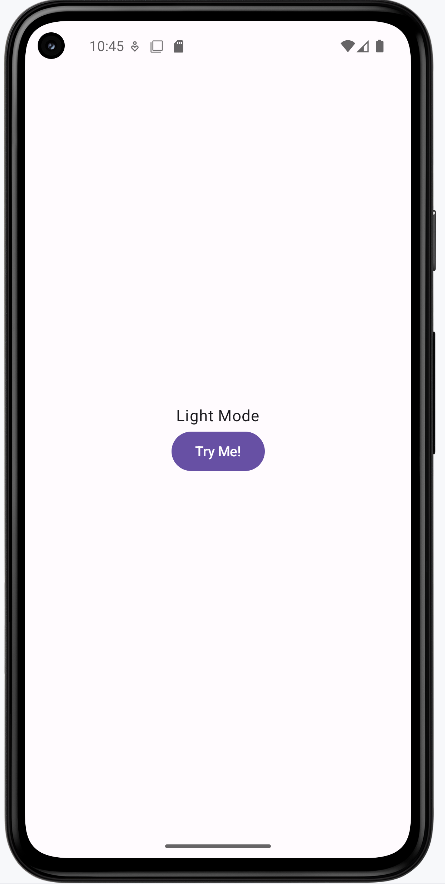
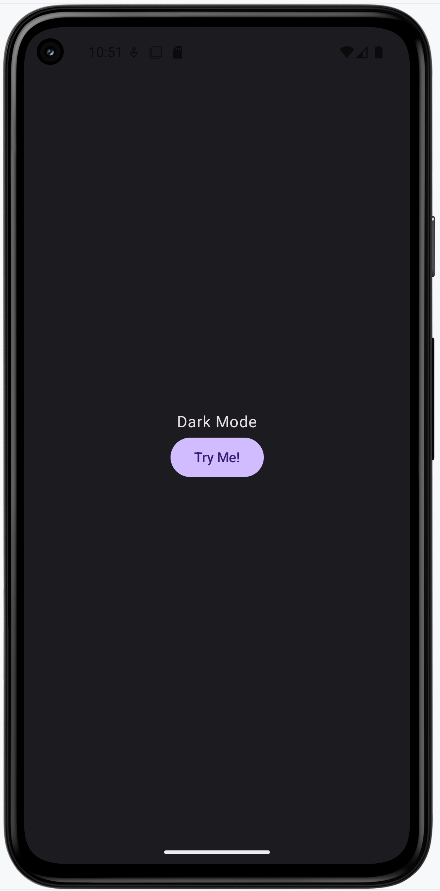
MaterialThemeapplies the chosen colors to all components- The text changes to show which mode is active
- All Material components use the correct colors automatically
How this example renders
Above is just a snippet of the code to view the full code, you need to go to my GitHub page and look at the chapter13 light_dark.kt file. When you run the code it will look like the example below.
Tips for Success
- Always test your app in both light and dark mode
- Use
MaterialTheme.colorSchemefor all colors in your UI - Let Compose handle the theme switching for you
Common Mistakes to Avoid
- Hardcoding colors that don't adapt to the theme
- Not checking your app's look in both modes
- Using images or icons that are hard to see in dark mode
Best Practices
- Use theme colors everywhere for consistency
- Test your app on real devices in different lighting
- Provide custom color schemes if your brand needs it