
Custom Modifiers
Introduction
Have you ever found yourself copying and pasting the same styling code over and over? Or wished you could give your favorite combination of modifiers a cool name? That's exactly what custom modifiers are for! Think of them like creating your own special recipe - you combine different ingredients (modifiers) once, give it a name, and then you can use it anywhere you want.
Quick Reference
| Concept | What It Is | When to Use It |
|---|---|---|
| Custom Modifier | A reusable function that combines modifiers | Repeating the same styling |
| Extension Function | A way to add new functions to existing types | Creating modifier functions |
| Parameterized Modifier | A custom modifier that accepts options | Creating flexible styling |
When to Create Custom Modifiers
- When you're repeating the same modifier chain in multiple places
- To make your code more readable and maintainable
- When you want to create consistent styling across your app
- To simplify complex modifier chains
- When you want to create a reusable design system
Common Options
| Feature | What It Does | When to Use It |
|---|---|---|
| Basic Custom Modifier | Combines fixed modifiers | Consistent styling |
| Parameterized Modifier | Accepts custom values | Flexible styling |
| Default Parameters | Provides fallback values | Optional customization |
Creating a Basic Custom Modifier
Let's create a custom modifier for styling tags, like the ones you might use for skills or categories:
fun Modifier.tagStyle(): Modifier {
    return this
        .background(Color.LightGray)  // Add background color
        .padding(horizontal = 8.dp, vertical = 4.dp)  // Add padding
}
What This Example Is Doing
tagStyle() is an extension function on Modifier: you call it as Modifier.tagStyle(). It returns a modifier that (1) gives the element a light gray background and (2) adds 8 dp of padding on the left and right and 4 dp on the top and bottom. So any composable you pass this modifier to will look like a small, padded tag. You define it once and reuse it wherever you want that style.
Using Your Custom Modifier
Here's how to use your custom modifier in a real layout:
@Composable
fun TagExample() {
    Row(horizontalArrangement = Arrangement.spacedBy(8.dp)) {
        Text("Compose", modifier = Modifier.tagStyle())  // Apply the style
        Text("Kotlin", modifier = Modifier.tagStyle())   // Apply the style
        Text("UI", modifier = Modifier.tagStyle())       // Apply the style
    }
}
What This Example Is Doing
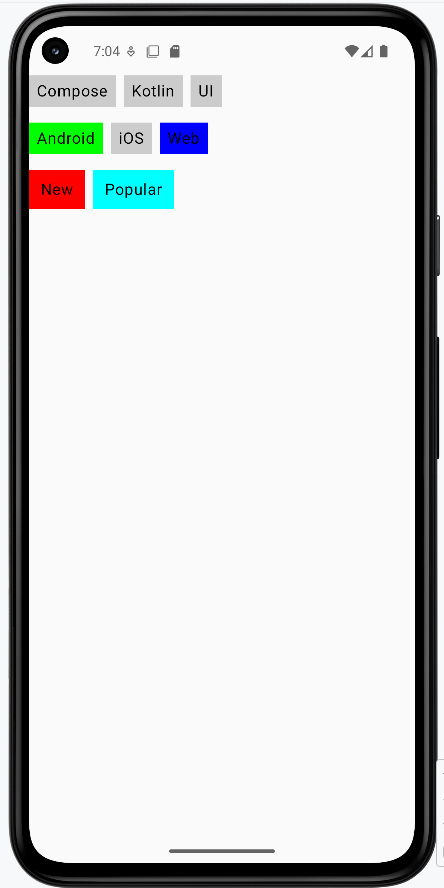
TagExample displays three words—"Compose," "Kotlin," and "UI"—in a horizontal row with 8 dp between them. Each word uses Modifier.tagStyle(), so they all get the same light gray background and padding from your custom modifier. If you change tagStyle() (e.g., different color or padding), every tag in the app that uses it updates in one place.
Adding Parameters to Custom Modifiers
Want to make your custom modifier more flexible? Add parameters!
fun Modifier.tagStyleParam(
    color: Color = Color.Red  // Default color if none provided
): Modifier {
    return this
        .background(color)  // Use the provided color
        .padding(horizontal = 8.dp, vertical = 4.dp)
}
Now you can customize the color when you use it:
Text("Android", modifier = Modifier.tagStyleParam(Color.Green))  // Custom color
Text("iOS", modifier = Modifier.tagStyleParam())  // Default color (red)
What This Example Is Doing
tagStyleParam is like tagStyle() but takes an optional color parameter (default Color.Red). The first line uses tagStyleParam(Color.Green), so "Android" gets a green background and the usual padding. The second uses tagStyleParam() with no argument, so "iOS" gets the default red background. One function, flexible styling.
How these examples render
The image below shows what the custom modifier examples look like when you run them: a row of tags styled with tagStyle(), and (if you use the parameterized version) tags with different colors from tagStyleParam(). The snippets above are only part of the code; to see and run the full project, go to my GitHub page and open the chapter5 cust_modifier.kt file.
Tips for Success
- Give your custom modifiers clear, descriptive names
- Start with basic modifiers before adding parameters
- Use default values for optional parameters
- Keep your modifier functions focused and simple
Common Mistakes to Avoid
- Creating too many parameters in one modifier
- Making modifiers too specific to one use case
- Forgetting to return the modified chain
- Not using default values for optional parameters
Best Practices
- Create modifiers for commonly used style combinations
- Use meaningful parameter names
- Document your custom modifiers with comments
- Test your modifiers with different content