
Click Events
Introduction
Think of click events in Compose like pressing buttons on your phone - they're how your app responds when users tap or click on things. Just like how your phone knows what to do when you tap an app icon, Compose needs to know what to do when users interact with your app's elements. We'll learn how to make your app respond to these interactions in a simple and effective way.
Quick Reference
| Command/Topic | Description | Common Use |
|---|---|---|
| Modifier.clickable | Makes any element respond to clicks | Making text, images, or custom elements interactive |
| Button onClick | Handles button press events | Creating interactive buttons and controls |
| remember | Allows Compose to remember a value across recompositions (screen reloads) | It is commonly used for storing data that needs to survive configuration changes, like screen rotations |
| mutableStateOf | It is a function that creates a changeable state in Compose | It is commonly used for managing values that can change over time, such as user input or interactive UI elements |
When to Use Click Events
- When you need to respond to user taps or clicks
- To create interactive buttons and controls
- When you want to toggle between different states
- To collect user input or selections
Practical Examples
Clickable Text with State
This example shows how to make text interactive - like a simple toggle button. When clicked, it changes its message, similar to how a light switch toggles between on and off states.
Why remember and mutableStateOf?
Compose functions can be called many times when the UI updates; that process is called recompose. Recomposing means Compose re-runs only the composables that depend on changed state—it redraws those parts of the screen, not the whole page. That is how a state change (like clicked flipping to true) becomes visible: when you update the state, Compose recomposes the composables that read that state, so the Text is redrawn with the new message. mutableStateOf(false) creates a state object that holds the current value and notifies Compose when the value changes, which triggers that recomposition. remember keeps that same state object across recompositions—without it, a new state would be created every time the composable ran, and clicked would reset to false and the toggle would not work. Together, remember { mutableStateOf(false) } means: "keep one state value for the lifetime of this composable, and tell Compose to recompose when it changes."
@Composable
fun ClickableTextExample() {
    var clicked by remember { mutableStateOf(false) }

    Text(
        text = if (clicked) "You clicked the text!" else "Click this text",
        modifier = Modifier
            .padding(16.dp)
            .clickable { clicked = !clicked }
    )
}
What This Example Is Doing
ClickableTextExample keeps a single piece of state: clicked, which starts as false. The Text shows "Click this text" when clicked is false and "You clicked the text!" when it's true. The Modifier.clickable { clicked = !clicked } makes the whole text area tappable: each tap flips clicked to its opposite, so the message toggles. remember { mutableStateOf(false) } keeps that state across recompositions so the toggle keeps working instead of resetting.
Button Click Counter
This example demonstrates a common pattern in apps - a counter that increases with each click. Think of it like a "like" button that keeps track of how many times it's been pressed.
@Composable
fun ButtonClickExample() {
    var count by remember { mutableStateOf(0) }

    Column(modifier = Modifier.padding(16.dp)) {
        Button(onClick = { count++ }) {
            Text("Add One")
        }
        Spacer(modifier = Modifier.height(12.dp))
        Text("You clicked $count times")
    }
}
What This Example Is Doing
ButtonClickExample uses count (state that starts at 0). A Column holds a Button labeled "Add One" and a Text that shows "You clicked 0 times" (or the current count). The button's onClick runs count++, so each tap increases the number. Compose recomposes when count changes, so the text below updates automatically to show the new count.
Selectable Tags
This example shows how to create interactive tags that users can select, similar to how you might select categories in a shopping app or filter options in a social media feed.
@OptIn(ExperimentalLayoutApi::class)// Required for FlowRow - marks that we're using an experimental feature
@Composable
fun SelectableTagsExample() {
    var selectedTag by remember { mutableStateOf(null) }

    val tags = listOf("Kotlin", "Compose", "Android", "UI")

    Column(modifier = Modifier.padding(16.dp)) {
        Text("Select a tag:")
        Spacer(modifier = Modifier.height(8.dp))

        FlowRow(horizontalArrangement = Arrangement.spacedBy(8.dp)) {
            for (tag in tags) {
                val selected = tag == selectedTag
                Text(
                    text = tag,
                    modifier = Modifier
                        .background(
                            color = if (selected) Color.Blue else Color.LightGray,
                            shape = RoundedCornerShape(12.dp)
                        )
                        .clickable { selectedTag = tag } //This modifier makes the text clickable.  If clicked selectedTag stores the name of the tag clicked.
                        .padding(horizontal = 12.dp, vertical = 6.dp),
                    color = if (selected) Color.White else Color.Black
                )
            }
        }

        Spacer(modifier = Modifier.height(16.dp))

        Text(
            text = if (selectedTag != null)
                "Selected tag: $selectedTag"
            else
                "No tag selected"
        )
    }
}
What This Example Is Doing
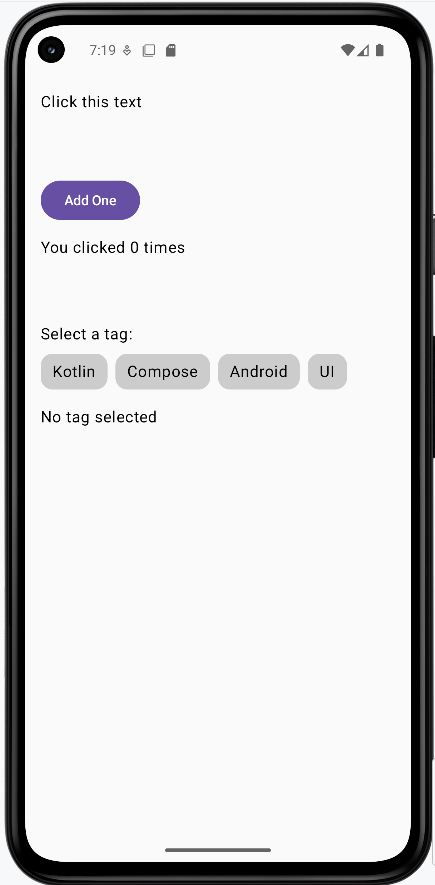
SelectableTagsExample keeps selectedTag in state (initially null). It shows the label "Select a tag:" and a FlowRow of four tags: "Kotlin," "Compose," "Android," and "UI." Each tag is a Text with Modifier.clickable { selectedTag = tag }, so tapping a tag sets selectedTag to that tag's name. The tag's background is blue with white text when it's the selected tag, and light gray with black text otherwise. Below the row, another Text shows "Selected tag: Kotlin" (or whichever tag was clicked) or "No tag selected" if none has been tapped yet.
How these examples render
The image below shows what the click-event examples look like when you run them: the clickable text (before/after clicking), the button with the count and "You clicked … times," and the selectable tags with one tag highlighted and "Selected tag: …" below. The snippets above are only part of the code; to see and run the full project, go to my GitHub page and open the chapter5 click_event_code.kt file.
Learning Aids
Tips for Success
- Always use
rememberandmutableStateOfwhen you need to track changes from clicks - Keep click handlers simple and focused on one task
- Use meaningful variable names for your state variables
- Test your click events on both emulator and real devices
Common Mistakes to Avoid
- Forgetting to use
rememberfor state variables - Putting complex logic directly in click handlers
- Not providing visual feedback for clickable elements
- Using click events when a more appropriate input method exists
Best Practices
- Always provide visual feedback for clickable elements
- Keep click handlers concise and readable
- Use appropriate modifiers for different types of interactions
- Consider accessibility when implementing click events