Set Up Android Studio
Before any work can begin on developing an Android application, the first step is to configure a computer system to act as the development platform. This involves several steps consisting of installing the Android Studio Integrated Development Environment (IDE), including the Android Software Development Kit (SDK), the Kotlin plug-in, and the OpenJDK Java development environment.
This chapter will cover the steps necessary to install the requisite components for Android application development on Windows, macOS, and Linux-based systems.
System Requirements
Android application development may be performed on any of the following system types:
- Windows 8/10/11 64-bit
- macOS 10.14 or later running on Intel or Apple silicon
- Chrome OS device with Intel i5 or higher
- Linux systems with version 2.31 or later of the GNU C Library (glibc)
- Minimum of 8GB of RAM
- Approximately 8GB of available disk space
- 1280 x 800 minimum screen resolution
Downloading the Android Studio Package
All of the work involved in developing applications for Android will be performed using the Android Studio environment. The content and examples in this book were created based on Android Studio Meerkat 2024.3.1 patch 1 using the Android API 35 SDK (Vanilla Ice Cream), which, at the time of writing, is the latest stable releases.
Android Studio is, however, subject to frequent updates so it may change mid-semeser
The latest release of Android Studio may be downloaded from the primary download page, which can be found at the following URL: https://developer.android.com/studio/index.html
Installing Android Studio
Once downloaded, the exact steps to install Android Studio differ depending on the operating system on which the installation is performed.
Installation on Windows
Locate the downloaded Android Studio installation executable file (named android-studio-<version>-windows.exe) in a Windows Explorer window and double-click on it to start the installation process. Click the Yes button in the User Account Control dialog if it appears.
Once the Android Studio setup wizard appears, work through the various screens to configure the installation to meet your requirements in terms of the file system location into which Android Studio should be installed and whether or not it should be made available to other system users. When prompted to select the components to install, ensure that the Android Studio and Android Virtual Device options are all selected.
Although there are no strict rules on where Android Studio should be installed on the system, the remainder of this book will assume that the installation was performed into C:\Program Files\Android\Android Studio and that the Android SDK packages have been installed into the user’s AppData\Local\Android\sdk sub-folder. Once the options have been configured, click the Install button to begin the installation process.
On versions of Windows with a Start menu, the newly installed Android Studio can be launched from the entry added to that menu during the installation. The executable may be pinned to the taskbar for easy access by navigating to the Android Studio\bin directory, right-clicking on the studio64 executable, and selecting the Pin to Taskbar menu option (on Windows 11, this option can be found by selecting Show more options from the menu).
Installation on macOS
Android Studio for macOS is downloaded as a disk image (.dmg) file. Once the android-studio-<version>-mac.dmg file has been downloaded, locate it in a Finder window and double-click on it to open it.
To install the package, drag the Android Studio icon and drop it onto the Applications folder. The Android Studio package will then be installed into the Applications folder of the system, a process that will typically take a few seconds to complete.
To launch Android Studio, locate the executable in the Applications folder using a Finder window and double-click on it.
For future, easier access to the tool, drag the Android Studio icon from the Finder window and drop it onto the dock.
Installation on Linux
Having downloaded the Linux Android Studio package, open a terminal window, change directory to the location where Android Studio is to be installed, and execute the following command:
tar xvfz /<path to package>/android-studio-<version>-linux.tar.gz
Note that the Android Studio bundle will be installed into a subdirectory named android-studio. Therefore, assuming that the above command was executed in /home/demo, the software packages will be unpacked into /home/demo/android-studio.
To launch Android Studio, open a terminal window, change directory to the android-studio/bin sub-directory, and execute the following command:
./studio.sh
The Android Studio Setup Wizard
If you have previously installed an earlier version of Android Studio, the first time this new version is launched, a dialog may appear providing the option to import settings from a previous Android Studio version. If you have settings from a previous version and would like to import them into the latest installation, select the appropriate option and location. Alternatively, indicate that you do not need to import any previous settings and click the OK button to proceed.
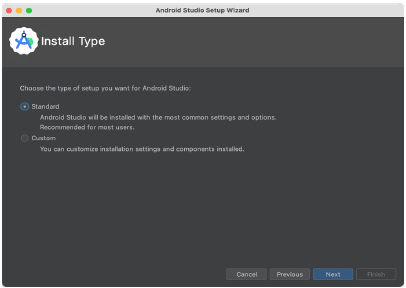
If you are installing Android Studio for the first time, the initial dialog that appears once the setup process starts may resemble that shown in the illustration. If this dialog appears, click the Next button to display the Install Type screen. On this screen, select the Standard installation option before clicking Next.
Setting up an Android Studio Development Environment
On the Select UI Theme screen, select either the Darcula or Light theme based on your preferences. After making a choice, click Next, and review the options in the Verify Settings screen before proceeding to the License Agreement screen. Select each license category and enable the Accept checkbox. Finally, click the Finish button to initiate the installation.
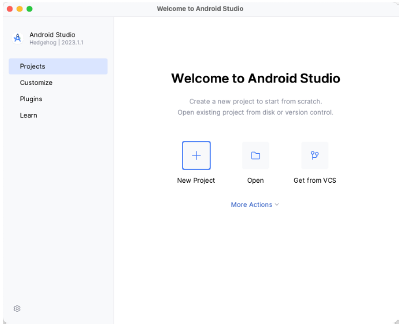
After these initial setup steps have been taken, click the Finish button to display the Welcome to Android Studio screen using your chosen UI theme:
Installing additional Android SDK packages
The steps performed so far have installed the Android Studio IDE and the current set of default Android SDK packages. Before proceeding, it is worth taking some time to verify which packages are installed and to install any missing or updated packages.
This task can be performed by clicking on the More Actions link within the welcome dialog and selecting the SDK Manager option from the drop-down menu. Once invoked, the Android SDK screen of the Settings dialog will appear as shown in:
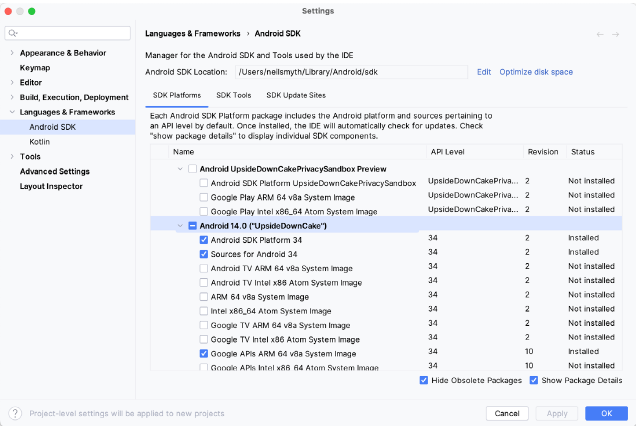
Google pairs each release of Android Studio with a maximum supported Application Programming Interface (API) level of the Android SDK. In the case of Android Studio Hedgehog, this is Android UpsideDownCake (API Level 34). This information can be confirmed using the following link: https://developer.android.com/studio/releases#api-level-support
Immediately after installing Android Studio for the first time, it is likely that only the latest supported version of the Android SDK has been installed. To install older versions of the Android SDK, select the checkboxes corresponding to the versions and click the Apply button. The rest of this book assumes that the Android UpsideDownCake (API Level 34) SDK is installed.
Most of the examples in this book will support older versions of Android as far back as Android 8.0 (Oreo). This ensures that the apps run on a wide range of Android devices. Within the list of SDK versions, enable the checkbox next to Android 8.0 (Oreo) and click the Apply button. Click the OK button to install the SDK in the resulting confirmation dialog. Subsequent dialogs will seek the acceptance of licenses and terms before performing the installation. Click Finish once the installation is complete.
It is also possible that updates will be listed as being available for the latest SDK. To access detailed information about the packages that are ready to be updated, enable the Show Package Details option located in the lower right-hand corner of the screen. This will display information similar to that shown in figure 2-6:
Setting up an Android Studio Development Environment
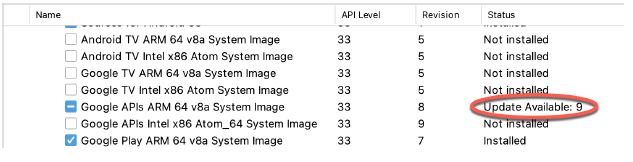
The above figure highlights the availability of an update. To install the updates, enable the checkbox to the left of the item name and click the Apply button.
In addition to the Android SDK packages, several tools are also installed for building Android applications. To view the currently installed packages and check for updates, remain within the SDK settings screen and select the SDK Tools tab as shown in:
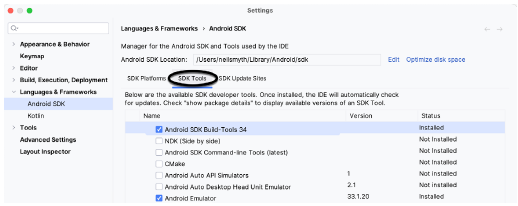
Within the Android SDK Tools screen, make sure that the following packages are listed as Installed in the Status column:
- Android SDK Build-tools
- Android Emulator
- Android SDK Platform-tools
- Google Play Services
- Google USB Driver (Windows only)
- Layout Inspector image server for API 31-34
Once the installation is complete, review the package list and ensure that the selected packages are listed as Installed in the Status column. If any are listed as Not installed, make sure they are selected and click the Apply button again.
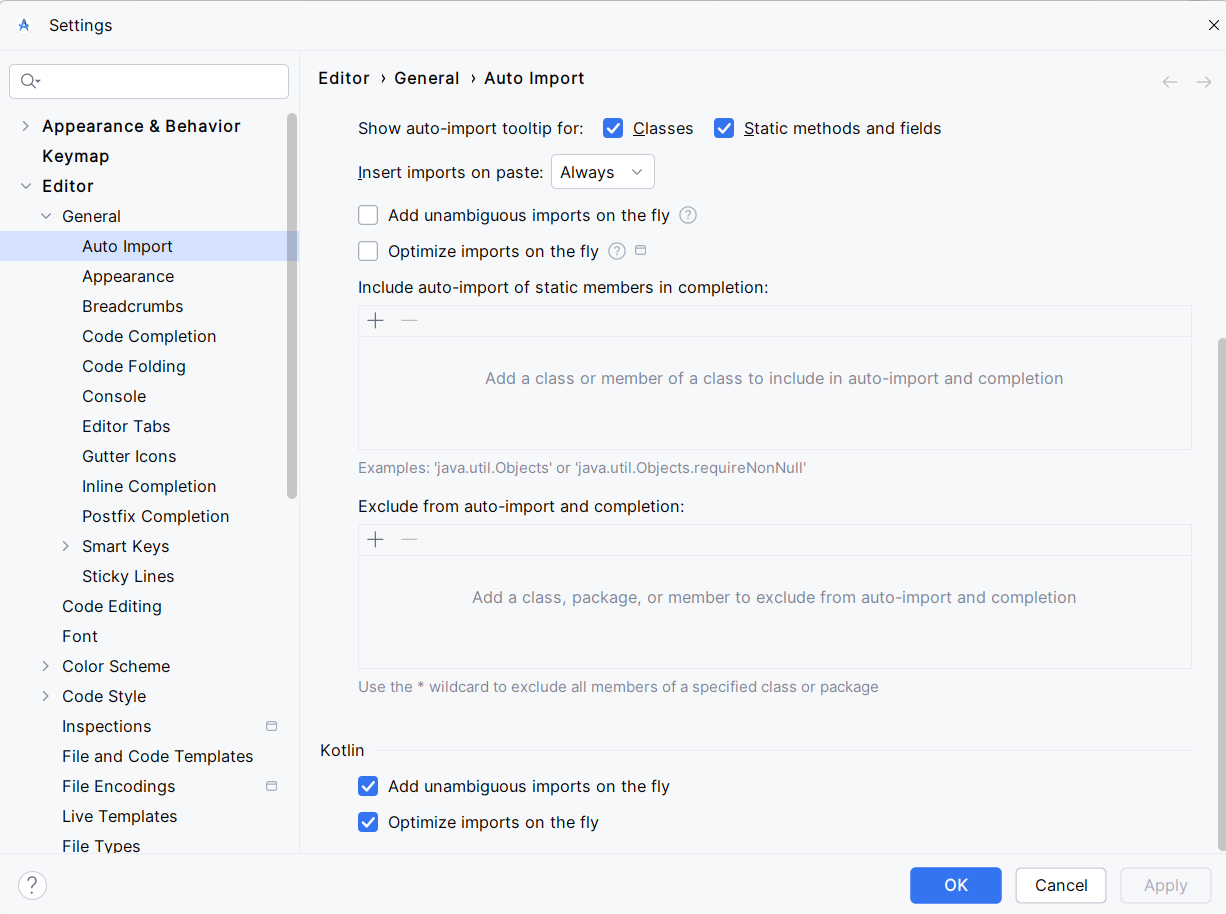
Setting up Auto Imports in Android Studio
Android Studio can be configured to automatically import the correct imports for you. This is a great time saver and it will help you to write code faster and more efficiently.
To set up auto imports, go to the File menu and select Settings. Then, select Editor and then General. Under the Auto Import section, check the boxes under the Kotlin area at the bottom of the page Add unambiguous imports on the fly and Optimize imports on the fly.