
Understanding State in Compose
Think of state in Compose like a memory box that remembers things for you. Just like how you might remember your score in a game or what level you're on, state helps your app remember information that can change over time. We'll learn how to use state to make your apps interactive and responsive to user actions.
Quick Reference
| Command/Topic | Description | Common Use |
|---|---|---|
| remember | Ensures a value, like a state object, survives across UI updates (recompositions) for a specific Composable. Without it, the value would be re-initialized every time the UI redraws. | Storing data that needs to persist during a Composable's active display |
| mutableStateOf | Creates an observable state holder. When its value changes, Compose automatically triggers a recomposition of any UI elements that are reading this state, making your app interactive. | Making UI elements interactive and triggering automatic UI updates |
| by | A Kotlin property delegate used with remember { mutableStateOf(...) }. It lets you read and write the state value directly (e.g. count, count++) instead of using .value every time (e.g. count.value, count.value = 5). |
Simplifying state variable declarations for cleaner code |
When to Use State
- When you need to remember user input
- To track what's selected or not selected
- When saving scores or progress
- To remember user preferences
- When UI elements need to change based on user actions
Practical Examples
Basic Counter
This example shows how to create a simple counter that increases when clicked. Think of it like a scoreboard that updates automatically.
@Composable
fun Counter() {
    // This creates a state variable that starts at 0
    var count by remember { mutableStateOf(0) }

    Column {
        // Display the current count
        Text("Count: $count")

        // A button that increases the count when clicked
        Button(onClick = { count++ }) {
            Text("Add One")
        }
    }
}
What This Example Is Doing
Counter creates count with remember { mutableStateOf(0) } so the value survives recomposition and triggers UI updates when it changes. The column shows "Count: 0" (or the current count) and an "Add One" button. Clicking the button runs count++; Compose recomposes and the Text shows the new number. So one state variable drives both the display and the update.
Common State Patterns
Here are some common ways to use state in your apps:
Text Input
@Composable
fun TextInputExample() {
    var text by remember { mutableStateOf("") }

    TextField(
        value = text,
        onValueChange = { text = it } /*it refers to the parameter passed to the lambda function. In this case, it represents the new value of the text input field when the user types or changes the text.*/
    )
}
What This Example Is Doing
TextInputExample keeps text in state (initially empty). The TextField’s value is text and onValueChange = { text = it } updates that state when the user types. So it is the new string from the field; assigning it to text updates state and recomposition shows the new value in the field. The UI and state stay in sync.
Checkboxes
@Composable
fun CheckboxExample() {
    var isChecked by remember { mutableStateOf(false) }

    Row {
        Checkbox(
            checked = isChecked,
            onCheckedChange = { isChecked = it } //it refers to either true or false
        )
        Text("Check me!")
    }
}
What This Example Is Doing
CheckboxExample keeps isChecked in state (initially false). The Checkbox’s checked is bound to isChecked and onCheckedChange = { isChecked = it } updates it when the user taps the checkbox. So it is the new boolean (true or false). The row shows the checkbox and "Check me!"; the checkbox stays checked or unchecked because state is remembered across recompositions.
Lists
@Composable
fun ListExample() {
    var items by remember { mutableStateOf(listOf("Item 1", "Item 2")) }

    Column {
        for (item in items) {
            Text(item) //will create two Text composables, one for each item in the list
        }
    }
}
What This Example Is Doing
ListExample keeps items in state—a list of strings ("Item 1", "Item 2"). The column loops over items and creates a Text for each. So you see two lines. If you later did items = items + "Item 3" (or similar) in response to a button or input, the state would change and the column would recompose to show three items. State can hold any type, including lists.
Interactive Counter App
This example demonstrates a more complete counter with both increase and decrease buttons, showing how state can be modified in different ways.
@Composable
fun CounterApp() {
    // Remember the current count
    var count by remember { mutableStateOf(0) }

    Column(
        modifier = Modifier.padding(16.dp),
        horizontalAlignment = Alignment.CenterHorizontally
    ) {
        // Show the current count
        Text(
            text = "Count: $count",
            style = TextStyle(fontSize = 24.sp)
        )

        // Add some space between elements
        Spacer(modifier = Modifier.height(16.dp))

        // Row of buttons to control the count
        Row {
            // Button to decrease count
            Button(onClick = { count-- }) {
                Text("-")
            }

            // Add space between buttons
            Spacer(modifier = Modifier.width(8.dp))

            // Button to increase count
            Button(onClick = { count++ }) {
                Text("+")
            }
        }
    }
}
What This Example Is Doing
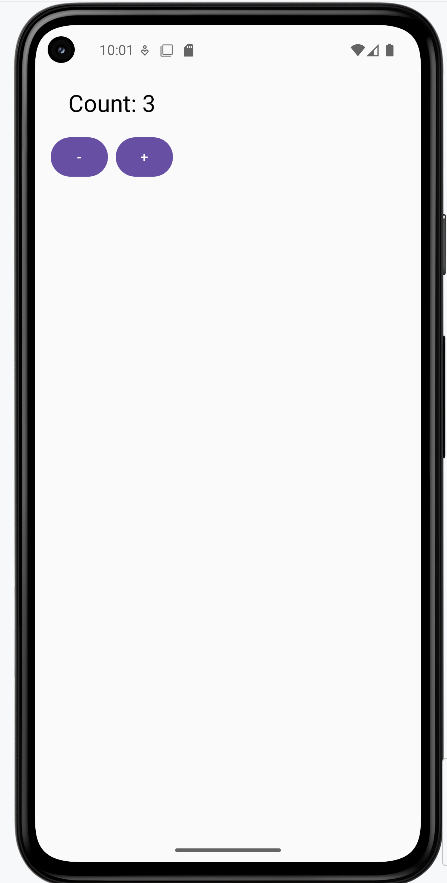
CounterApp keeps count in state and shows it with large text. A row has two buttons: "−" runs count-- and "+" runs count++. So the user can increase or decrease the count; the displayed number updates each time because Compose recomposes when count changes. The remembered state is the count value.
How these examples render
The image below shows the counter app (e.g. after tapping the + button a few times—the count is the remembered state). The snippets above are only part of the code; to see and run the full project, go to my GitHub page and open the chapter6 state.kt file.
Learning Aids
Tips for Success
- Always use
rememberfor values that need to persist during a Composable's active display and recompositions - Use meaningful names for your state variables
- Keep state changes simple and predictable
- Test your state changes thoroughly
Common Mistakes to Avoid
- Forgetting to use
rememberfor state variables, leading to state resetting on recomposition - Creating state variables outside of composable functions (they won't trigger recompositions or be remembered by Compose)
- Modifying state directly instead of using the proper update methods (e.g., `count.value = 5` instead of `count = 5` with `by`)
- Creating too many state variables when one would suffice
Best Practices
- Keep state as local as possible
- Use state only when necessary
- Make state changes predictable and traceable
- Consider the impact of state changes on performance
To try these examples, go to my GitHub page and look at the chapter6 state.kt file.