
Recomposition
Introduction
Have you ever wondered how your app updates when you click a button or change some text? That's where recomposition comes in! Think of recomposition like updating a picture - when something changes, Compose redraws just the parts that need to change, making your app fast and efficient. We'll learn how Compose smartly updates only what needs to change in your UI.
Quick Reference
| Concept | Description | Common Use |
|---|---|---|
| Recomposition | Smart UI updates that only change what's needed | Updating UI when data changes |
| remember | Keeps state between recompositions | Storing data that needs to persist |
| rememberSaveable | Keeps state after screen rotation | Preserving data during configuration changes |
When Recomposition Occurs
Recomposition happens automatically in these situations:
- When a state variable created with
mutableStateOfchanges value - When a composable's parameters change
- When a parent composable recomposes
You don't need to manually trigger recomposition - Compose handles this automatically when you use state variables. For example:
@Composable
fun Counter() {
    // When this state changes, Compose automatically recomposes
    // any composables that read this value
    var count by remember { mutableStateOf(0) }

    Column {
        // This Text will automatically recompose when count changes
        Text("Count: $count")
        Button(onClick = { count++ }) {
            Text("Add One")
        }
    }
}
In this example, when you click the button and count changes, Compose automatically recomposes the Text that displays the count. You don't need to do anything special to make this happen - it's built into how Compose works!
Common Options
| Option | What It Does | When to Use It |
|---|---|---|
| remember | Preserves state during recomposition | For normal state management |
| rememberSaveable | Preserves state after screen rotation | When state needs to survive configuration changes |
| mutableStateOf | Creates observable state | When you need values that can change |
Practical Examples
Basic Counter Example
This example shows how recomposition works with a simple counter. Think of it like a scoreboard that only updates the number, not the whole display.
@Composable
fun Counter() {
    // This state will trigger recomposition when it changes
    var count by remember { mutableStateOf(0) }

    Column {
        Text("Count: $count")
        Button(onClick = { count++ }) {
            Text("Add One")
        }
    }
}
What This Example Is Doing
Counter keeps count in state with remember { mutableStateOf(0) }. The column shows "Count: $count" and an "Add One" button. When you click the button, count++ runs, the state changes, and Compose recomposes only the composables that read count—so the Text updates to the new number. The button and the rest of the tree can be reused without being re-created. You don't call any "refresh" method; recomposition is automatic when state changes.
Common Recomposition Patterns
Here are some practical ways to use recomposition in your apps:
Updating Text
@Composable
fun TextUpdater() {
    var text by remember { mutableStateOf("Hello") }

    Column {
        Text(text)  // Recomposes when text changes
        TextField(
            value = text,
            onValueChange = { text = it }
        )
    }
}
What This Example Is Doing
TextUpdater keeps text in state (starting as "Hello"). The TextField shows that value and calls onValueChange = { text = it } when the user types, so text updates. Because the first Text reads text, it recomposes and shows the new string. So the displayed text and the text field stay in sync through state and recomposition.
Showing/Hiding Content
@Composable
fun ShowHideExample() {
    var isVisible by remember { mutableStateOf(true) }

    Column {
        if (isVisible) {
            Text("This text appears/disappears")
        }
        Button(onClick = { isVisible = !isVisible }) {
            Text(if (isVisible) "Hide" else "Show")
        }
    }
}
What This Example Is Doing
ShowHideExample keeps isVisible in state (initially true). When true, the column shows the text "This text appears/disappears" and a "Hide" button; when false, that text is not in the composition and the button says "Show." Clicking the button toggles isVisible, so Compose recomposes and either adds or removes the Text. So the UI structure itself changes based on state.
Changing Colors
@Composable
fun ColorChanger() {
    var isRed by remember { mutableStateOf(false) }

    Box(
        modifier = Modifier
            .size(100.dp)
            .background(if (isRed) Color.Red else Color.Blue)
            .clickable { isRed = !isRed }
    )
}
What This Example Is Doing
ColorChanger keeps isRed in state (initially false). A 100 dp box’s background is red when isRed is true and blue when false; the box is clickable and toggles isRed. So each tap triggers recomposition, and the box’s background modifier is re-evaluated and redraws with the new color.
Handling Screen Rotation
This example shows how to handle state during screen rotation. Think of it like preserving your work when you turn your paper sideways.
@Composable
fun RotationExample() {
    // This will reset when screen rotates
    var count by remember { mutableStateOf(0) }

    // This will keep its value even after rotation
    var savedCount by rememberSaveable { mutableStateOf(0) }

    Column {
        Text("Regular count: $count")  // Resets on rotation
        Text("Saved count: $savedCount")  // Keeps value after rotation

        Button(onClick = {
            count++
            savedCount++
        }) {
            Text("Add One")
        }
    }
}
What This Example Is Doing
RotationExample shows two counters: one with remember { mutableStateOf(0) } and one with rememberSaveable { mutableStateOf(0) }. Both start at 0; one button increments both. When you rotate the device, the activity is re-created. The "Regular count" resets to 0 because remember only survives recomposition, not process/activity recreation. The "Saved count" keeps its value because rememberSaveable saves and restores state across configuration changes (like rotation). So you see the difference between in-memory state and state that survives rotation.
Smart Counter with Conditional Updates
This example shows how Compose can be smart about what it updates. Think of it like a smart display that only changes what needs to change.
@Composable
    fun SmartCounter() {
        var count by remember { mutableStateOf(0) }

        // This Text will recompose when count changes
        Text("Count: $count")

        // This Text will never recompose because it's static
        Text("This text never changes!")

        // This Text will only recompose when count is even
        Text("Count is ${if (count % 2 == 0) "even" else "odd"}")

        Button(onClick = { count++ }) {
            Text("Add One")
        }
    }
What This Example Is Doing
SmartCounter has one count state and three text lines. The first Text("Count: $count") reads count, so it recomposes every time count changes. The second Text("This text never changes!") does not read any state, so Compose can skip recomposing it. The third Text reads count (in the "even"/"odd" expression), so it recomposes when count changes. So only the parts that depend on count are recomposed; the static text is left alone.
Profile Card with Smart Updates
This example demonstrates how different parts of the UI can update independently. Think of it like a smart form where only the changed fields update.
@Composable
            fun ProfileCard() {
                // State variables with remember/rememberSaveable to maintain state across recompositions
                var name by rememberSaveable { mutableStateOf("John") }
                var age by remember { mutableStateOf(20) }
                var favoriteColor by remember { mutableStateOf("Blue") }

                // Predefined lists for cycling through different values
                val names = listOf("John", "Jane", "Alex", "Sam")
                val colors = listOf(
                    Pair(Color(0xFF2196F3), "Blue"),      // Material Blue
                    Pair(Color(0xFF4CAF50), "Green"),     // Material Green
                    Pair(Color(0xFFF44336), "Red"),       // Material Red
                    Pair(Color(0xFF9C27B0), "Purple")     // Material Purple
                )

                // Indices for cycling through the predefined lists
                var nameIndex by remember { mutableStateOf(0) }
                var colorIndex by remember { mutableStateOf(0) }

                // Main layout container
                Column(
                    modifier = Modifier
                        .fillMaxSize()
                        .padding(16.dp),
                    horizontalAlignment = Alignment.CenterHorizontally,
                    verticalArrangement = Arrangement.spacedBy(16.dp)
                ) {
                    // Card title
                    Text(
                        text = "Profile Card",
                        style = MaterialTheme.typography.headlineMedium,
                        modifier = Modifier.padding(bottom = 8.dp)
                    )

                    // Profile information card with dynamic background color
                    Card(
                        modifier = Modifier
                            .fillMaxWidth()
                            .weight(1f),
                        colors = CardDefaults.cardColors(
                            containerColor = colors[colorIndex].first
                        )
                    ) {
                        // Profile information container
                        Column(
                            modifier = Modifier
                                .padding(16.dp)
                                .fillMaxWidth(),
                            horizontalAlignment = Alignment.CenterHorizontally,
                            verticalArrangement = Arrangement.spacedBy(16.dp)
                        ) {
                            // Profile information text fields
                            Text(
                                text = "Name: $name",
                                style = MaterialTheme.typography.bodyLarge,
                                color = Color.White
                            )

                            Text(
                                text = "Age: $age",
                                style = MaterialTheme.typography.bodyLarge,
                                color = Color.White
                            )

                            Text(
                                text = "Favorite Color: ${colors[colorIndex].second}",
                                style = MaterialTheme.typography.bodyLarge,
                                color = Color.White
                            )
                        }
                    }
                    ...more code is here...
                }
            }
What This Example Is Doing
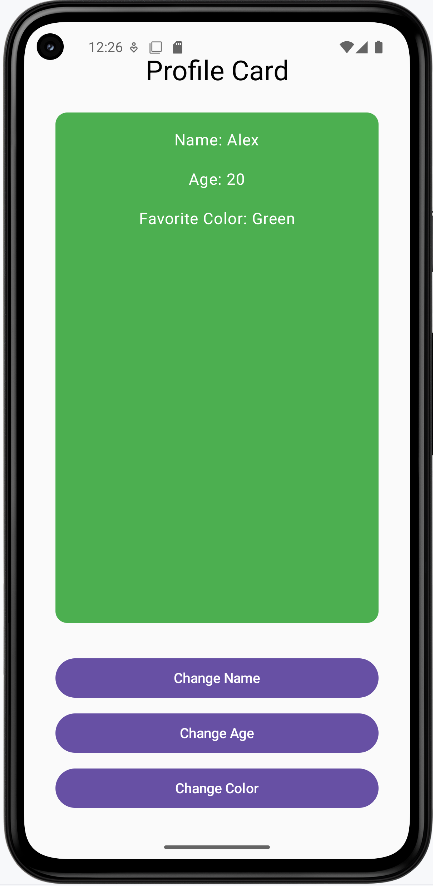
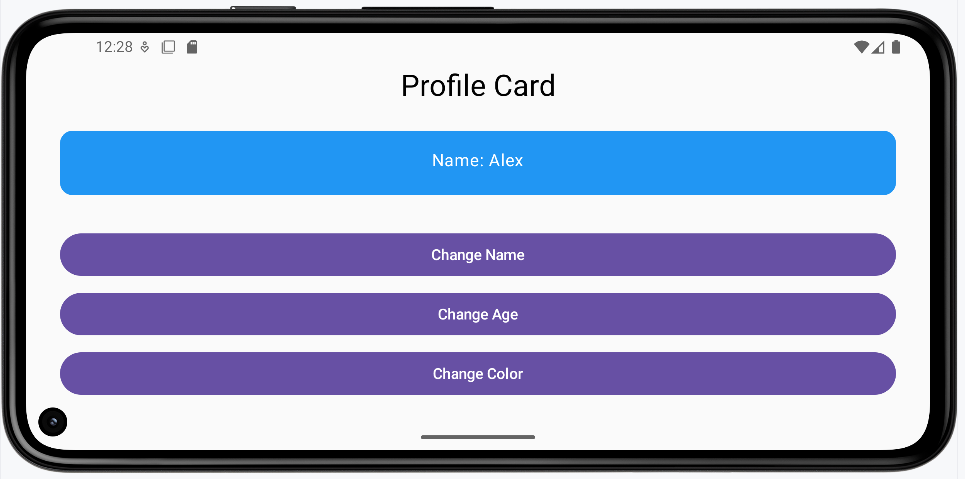
ProfileCard shows a card with name, age, and favorite color. The name uses rememberSaveable so it survives screen rotation; the background color (and color index) use remember so they reset when the configuration changes. Buttons let you cycle through predefined names and colors. So when you rotate the device, the name stays (e.g. "Alex") but the card color goes back to the default (e.g. blue), illustrating the difference between the two state holders.
How these examples render
The snippets above are only part of the code; to see and run the full project, go to my GitHub page and open the chapter6 recomposition.kt file.
The first image shows the app after the name button has been clicked so "Alex" appears and the background color was set to green. The second image shows the app after the device is rotated. The name is still "Alex" because it uses rememberSaveable, but the background color is blue again (the initial color) because the color index uses remember, which does not survive configuration changes. So rememberSaveable preserves state across rotation; remember does not.
NOTE: The rotated screen shows a partial view of the card.
Learning Aids
Tips for Success
- Only update what needs to change
- Keep state close to where it's used
- Use remember for normal state management
- Use rememberSaveable when state needs to survive rotation
Common Mistakes to Avoid
- Putting state in the wrong place
- Forgetting to use remember
- Updating more than necessary
- Not handling screen rotation properly
Best Practices
- Keep recompositions minimal
- Use appropriate state management
- Handle configuration changes properly
- Test your UI with different scenarios