
What is a ViewModel?
Introduction
A ViewModel is like a manager for your app's data. It keeps track of information your screen needs, even if the user rotates their phone or leaves and comes back. In Jetpack Compose (and Android in general), ViewModels help you keep your UI and your app's logic separate, making your code easier to understand and maintain.
When to Use a ViewModel
- When you need to keep data around as the user navigates or rotates the device
- When you want to separate your UI code from your business logic
- When you have data that is shared between multiple composables or screens
Main Concepts
- Lifecycle-aware: ViewModels survive configuration changes (like screen rotation) so your data isn't lost.
- UI separation: The ViewModel holds the data and logic, while your composables just display it.
- State holder: The ViewModel is the "single source of truth" for your screen's state.
Dependencies
You will have to add some dependencies to your gradle file for view models to work.
Gradle (build.gradle.kts Module :app)
dependencies {
    // ... your existing dependencies ...
    implementation(libs.androidx.lifecycle.viewmodel.compose)
    // ... rest of your dependencies ...
}
libs.versions.toml
[versions]
# ... your existing versions ...
lifecycle = "2.7.0"  # Add this line

[libraries]
androidx-lifecycle-viewmodel-compose = { group = "androidx.lifecycle", name = "lifecycle-viewmodel-compose", version.ref = "lifecycle" }
Creating a New Class File
You will need to create a new class file for your ViewModel.
Right click on your package name, it will start with com.
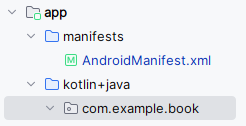
Then click New and then Kotlin File/Class
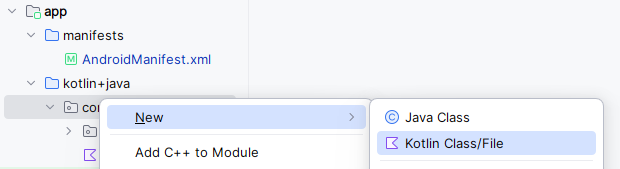
In the dialog box select Class and enter the file name "MainViewModel". NOTE: The file name can be anything you want.
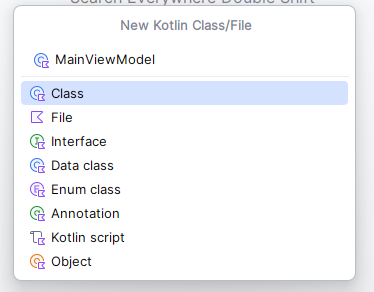
That will create a class file and place it in the same package as your MainActivity.kt file.
Creating the ViewModel
You have to have a file that is your view model. For this example I will create a file called MainViewModel.kt. It contains the following code:
import androidx.compose.runtime.mutableStateOf
    import androidx.lifecycle.ViewModel

    class MainViewModel : ViewModel() {
        private var _count = mutableStateOf(0)
        var count: Int
            get() = _count.value
            private set(value) {
                _count.value = value
            }

        fun increment() {
            count = count + 1
        }
    }
This Kotlin code defines a MainViewModel class, which extends ViewModel.
The ViewModel class is part of the Android Architecture Components and is designed to store and manage UI-related data in a lifecycle-conscious way.
This means the data within the ViewModel persists across configuration changes (like screen rotations) and the ViewModel itself lives as long as the scope of the UI (e.g., an Activity or Fragment).
Key components:
private var _count = mutableStateOf(0): This declares a private mutable state variable named_countand initializes it to 0.mutableStateOfis a function from the Jetpack Compose UI toolkit that creates an observable state holder. When the value of_countchanges, any UI elements observing it will automatically recompose (update). By making it private, external classes cannot directly modify this internal state.var count: Int: This declares a public read-only property namedcountof typeInt. It has a custom getter and a private setter:get() = _count.value: The getter simply returns the current value of the private_count.private set(value) { _count.value = value }: The setter is private, meaning that while thecountcan be read publicly, it can only be modified internally within theMainViewModelclass. This enforces a pattern where the UI can observe the state, but cannot directly change it; changes must happen through defined functions in the ViewModel.
fun increment(): This is a public function that provides a way to modify thecount. When called, it increments thecountby 1. This function serves as the controlled entry point for the UI to request a state change.
In summary, this ViewModel manages a simple counter.
The UI can observe the count property to display its current value, and it can call the increment() function to request an update to the counter, without directly manipulating the state.
MainActivity.kt
You also must have a mainactivity.kt file. The MainActivity.kt file is the UI that uses the view model for its data. The partial code is shown below:
import androidx.lifecycle.viewmodel.compose.viewModel  //this imports the viewModel file
...

//this is the composable function that uses the view model
@Composable
fun CounterScreen() {
    // Get or create a ViewModel instance
    // viewModel() is a composable function that handles ViewModel lifecycle
    val viewModel: MainViewModel = viewModel()

    // Column arranges its children vertically
    Column(
        modifier = Modifier
            .padding(top = 50.dp)  // Add top padding for better spacing from status bar
            .padding(16.dp)        // Add padding around all sides
    ) {
        // Button that triggers the increment function in ViewModel
        Button(onClick = { viewModel.increment() }) {
            Text("Increment")
        }

        // Text composable that displays the current count
        // It automatically updates when the count changes in ViewModel
        Text("Count: ${viewModel.count}")
    }
}
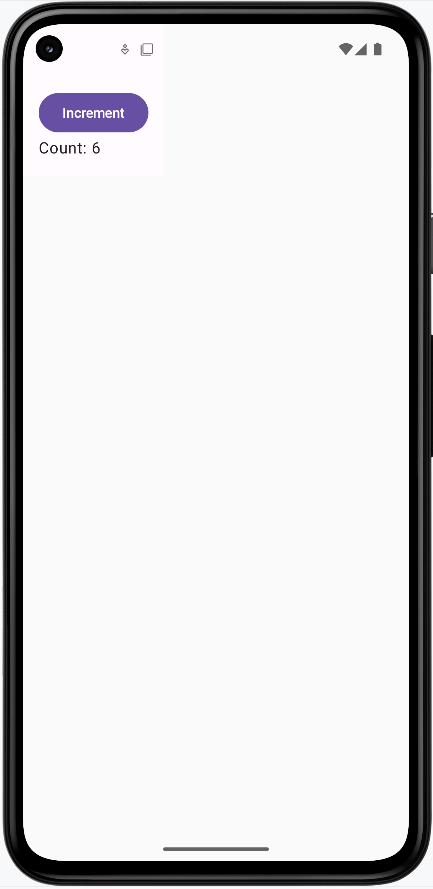
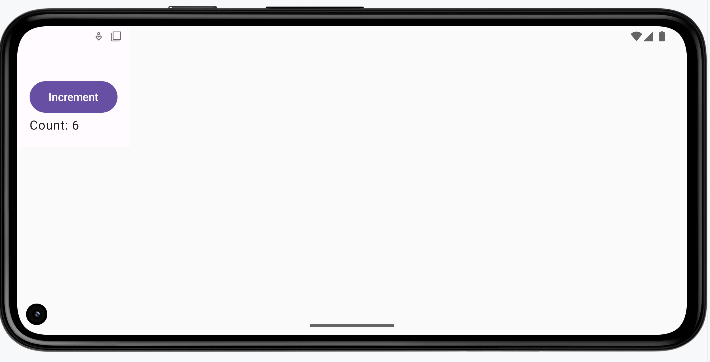
The key line in the code above is Button(onClick = { viewModel.increment() }) { This is the button that triggers the increment function in the ViewModel. The Text("Count: ${viewModel.count}") is displaying the count from the ViewModel.
How this example renders
Above is just a snippet of the code to view the full code, you need to go to my GitHub page and look at the chapter10 mainviewmodel1.kt file and chapter10 mainactivity1.kt file.
Passing Data to the ViewModel
So far we've seen the ViewModel hold state (like a count) and the UI read it and call functions like increment(). But often the user types something in a text field or makes a choice, and you need to send that data into the ViewModel. The UI "passes" the data by calling a function on the ViewModel with the new value. The ViewModel stores it and can use it later (for example, to show a message or to send to a server). The following example shows a screen where the user enters a name; that name is passed to the ViewModel, and when they tap a button, the ViewModel uses that name to set an output message.
In the earlier counter example, the ViewModel used mutableStateOf directly, which is fine for very small, UI-only screens. In this more realistic example, the ViewModel uses StateFlow (and MutableStateFlow) instead. Flow is Kotlin's standard way to represent a stream of values over time that can be used not just by Compose, but also by other layers like repositories and use cases. The UI collects the latest value with collectAsState(), so when the ViewModel updates the flow, the UI recomposes and shows the new value. The pattern is the same: the ViewModel owns the data; the UI reads it and sends events (like "name changed" or "display name clicked") by calling functions on the ViewModel.
MainViewModel.kt
class MainViewModel : ViewModel() {

    private val _Name = MutableStateFlow("")
    val Name: StateFlow<String> = _Name

    private val _output = MutableStateFlow("")
    val output: StateFlow<String> = _output

    fun onNameChange(name: String) {
        _Name.value = name
    }

    fun displayName() {
        _output.value = "The name is ${_Name.value}"
    }
}
Why use private variables? The ViewModel uses a common pattern: private mutable variables (_Name, _output) and public read-only properties (Name, output). The underscore names (_Name, _output) are MutableStateFlows—only the ViewModel can write to them (e.g. _Name.value = name). The public Name and output are typed as StateFlow, which only lets the UI read the latest value; the UI cannot assign to them. That way, the UI cannot change the state directly. All updates go through the ViewModel's functions (onNameChange, displayName), so the ViewModel stays in control of when and how state changes, which keeps the logic in one place and avoids bugs.
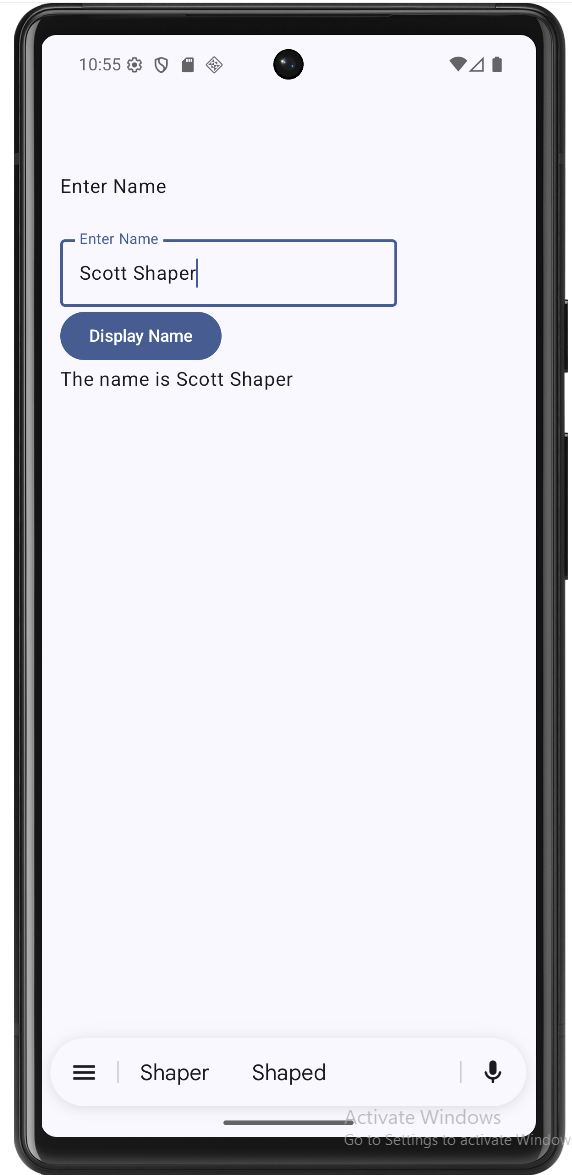
The ViewModel holds two pieces of state: the current name (_Name) and the message to show (_output). Both are exposed as read-only StateFlows (Name and output) so the UI can observe them. When the user types, the UI calls onNameChange(name)—that's "passing data to the ViewModel." When the user taps the button, the UI calls displayName(), and the ViewModel sets _output using the name it stored. So the data flow is: user input → UI calls onNameChange → ViewModel stores it; user taps button → UI calls displayName → ViewModel reads the stored name and updates output.
PassingData composable in MainActivity.kt
@Composable
fun PassingData(modifier: Modifier = Modifier) {

    val viewModel: MainViewModel = viewModel()

    val Name by viewModel.Name.collectAsState()
    val Output by viewModel.output.collectAsState()

    Column(modifier = modifier.padding(16.dp)) {

        Text(
            text = "Enter Name",
            modifier = modifier
        )

        OutlinedTextField(
            value = Name,
            onValueChange = { viewModel.onNameChange(it) },
            label = { Text("Enter Name") },
        )

        Button(onClick = { viewModel.displayName() }) {
            Text("Display Name")
        }

        Text(text = Output)
    }
}
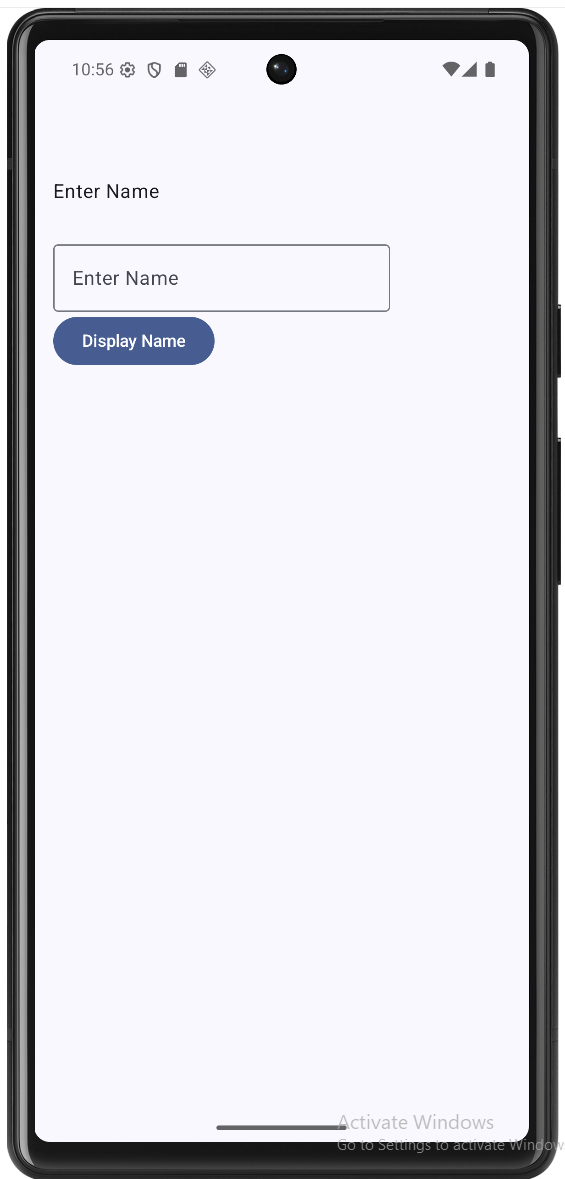
PassingData gets the ViewModel with viewModel(). It then collects the ViewModel's Name and output flows into Compose state with collectAsState(), so whenever the ViewModel updates those flows, the UI recomposes. The text field's value is Name (from the ViewModel), and onValueChange passes the new text into the ViewModel by calling viewModel.onNameChange(it). That's how the typed name is sent to the ViewModel. The button calls viewModel.displayName(), which updates output in the ViewModel; the Text(text = Output) at the bottom shows that message. So the screen stays simple: it only displays state and forwards user actions to the ViewModel, and the ViewModel holds the data and decides what the output message is.
How this example renders
Above is just a snippet of the code to view the full code, you need to go to my GitHub page and look at the chapter10 PassingData folder you will find the full code for the Main Acvitity and Main View Model files.
Tips for Success
- Use ViewModels for any data you want to keep when the screen changes.
- Keep your UI code (composables) simple—let the ViewModel handle the logic.
- Don't put Android Context or UI elements in your ViewModel.
Common Mistakes to Avoid
- Storing UI elements or Context in the ViewModel (it should only hold data and logic).
- Trying to use a ViewModel for data that should only exist temporarily (like a text field's current value).
- Forgetting to use
by mutableStateOffor state you want Compose to react to.
Best Practices
- Use one ViewModel per screen or feature.
- Expose only the data and functions your UI needs (keep things
privatewhen possible). - Document what your ViewModel does and what state it holds.