
File and Folder Structure
When you have an app selected in Android Studio, the view typically defaults to the Android view, which organizes files logically rather than by their actual location in the file system. Here's how the files and folders are typically displayed when an app is selected within the Android Studio:
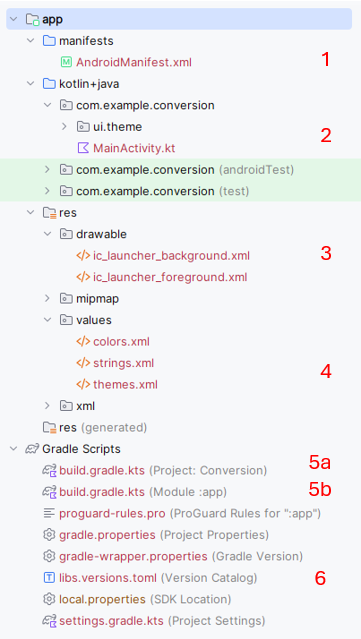
-
Manifest File (
AndroidManifest.xml):- Location in Android Studio:
app > manifests > AndroidManifest.xml - Details: In this view, the Android Manifest appears under the "manifests" directory, which specifically highlights the configuration settings for the app that Android OS uses to run its components. See below for a more detailed explaination of this file
- Location in Android Studio:
-
Kotlin Code Files (e.g.,
MainActivity.kt):- Location in Android Studio:
app > kotlin+java > [your_package_name] > MainActivity.kt - Details: Source files like
MainActivity.ktappear under the "kotlin + java" directory, followed by the package structure that you've defined for your app. This is where all your Kotlin or Java code resides.
- Location in Android Studio:
-
Drawable Folder:
- Location in Android Studio:
app > res > drawable - Details: Drawable resources such as images and XML graphics are located in the "drawable" folder inside the "res" directory. This folder is used to store graphics that your application will use in its UI.
- Location in Android Studio:
-
Strings File (
strings.xml):- Location in Android Studio:
app > res > values > strings.xml - Details: The
strings.xmlfile is located in the "values" folder under "res". This folder also houses other resource types like dimensions (dimens.xml), styles (styles.xml), and color definitions (colors.xml). Thestrings.xmlfile centralizes the text resources for easy localization and referencing.
- Location in Android Studio:
-
Gradle Build Files:
- Project-Level
build.gradle:- Location in Android Studio: Gradle Scripts
- Details: This file contains settings applicable to all modules, such as the Gradle version, repositories, and dependencies applicable at the project level. Please see below for a more detailed explaination of this file
- Module-Level
build.gradle:- Location in Android Studio: Gradle Scripts
- Details: This build file is specific to the app module and includes settings like SDK versions, application ID, dependencies, and more specific to the module. Please see below for a more detailed explaination of this file
- Project-Level
-
libs.versions.toml
- Location in Android Studio within Gradle Scripts
- Details: This file is used to manage and centralize library versions and plugin dependencies for your project. It helps keep versions consistent across modules and simplifies updates by allowing you to define version numbers in one place.
These locations reflect how Android Studio organizes and displays files in a way that emphasizes the logical structure of the app rather than the underlying file system structure. This organization is particularly helpful for navigating large projects efficiently.
Android Manifest File
The Android Manifest file, named AndroidManifest.xml, is a critical file in any Android project. It
serves as a central configuration file that the Android system reads to understand the basic structure and essential
attributes of an application. Here are the key elements and attributes typically included in the Android Manifest
file, and their purposes. NOTE, these are typical not always present:
-
Manifest Tag (
<manifest>): This is the root element of the manifest file. It includes namespace declarations and package declarations that uniquely identify the application. Attributes likepackagedefine the package name that serves as a unique identifier for the application across the system and on the Google Play store. -
Application Tag (
<application>): This tag encapsulates all components of the Android application such as activities, services, broadcast receivers, and content providers. It can also include metadata, libraries, and other attributes that define global properties of the application like theme and logo.- Attributes:
android:name: Specifies the name of a class implementing the application, typically used when creating a custom Application class.android:icon: Defines the icon for all the application's components.android:theme: Specifies an overall theme for all the UI components, which can be defined in the styles resource file.
- Attributes:
-
Activity Tag (
<activity>): Activities are arguably the most important components of an Android app. They represent screens with which users interact. Each activity must be declared in the manifest file.- Attributes:
android:name: The name of the activity class.android:label: A user-readable label for the activity, which can be displayed on the device screen.android:theme: Overrides the application-wide theme for this activity.
- Attributes:
-
Service Tag (
<service>): Services are components that run in the background to perform long-running operations or to perform work for remote processes. Each service used by the application must be declared here. -
Receiver Tag (
<receiver>): These are components that respond to system-wide broadcast announcements. Many broadcasts originate from the system—for example, a broadcast announcing that the screen has turned off, the battery is low, or a picture was captured. -
Provider Tag (
<provider>): Defines a content provider that manages access to a structured set of data. They encapsulate the data and provide mechanisms for defining data security. -
Permission Tag (
<uses-permission>and<permission>): These tags are used to request specific permission from the system to access protected parts of the API and the user's device (like camera, contacts, or GPS). They also can declare permissions that other applications must have to interact with components of this application. -
Intent-Filter Tag (
<intent-filter>): Defines the types of intents that components are willing to receive. By declaring what actions and data an activity, service, or broadcast receiver can handle, these filters determine how other applications can interact with the components of the application. -
Uses-SDK Tag (
<uses-sdk>): Specifies the minimum API Level required by the app and the target version that the app is tested against. -
Meta-Data Tag (
<meta-data>): Provides additional metadata to the Android system and other applications that can interact with the app’s components. This could be configuration values, features, or services the application uses.
The Android Manifest file is essential for not only declaring the structure of the application but also for ensuring the proper interaction with the Android operating system and other applications. It acts as a bridge between your app and the Android system, declaring how the app should behave and what resources or permissions it requires.
The build.gradle file in the Project area (6a)
The project-level build.gradle file serves as the backbone for configuring how Gradle handles the
project's build process. It sets up foundational aspects like where to download dependencies and how different parts
of the project interact. By centralizing this configuration, it ensures that all parts of the project are built
using a unified approach, making the build process more predictable and easier to manage. This file is typically
complemented by module-level build.gradle files, which configure module-specific details. These are discussed further in Chapter 2 section "Android Studio Gradle Explained".
The build.gradle file in the Module area (6b)
The module-level build.gradle file is integral for tailoring the build and configuration settings to the
specifics of an app or library module within an Android project. It determines how the module is built, what
resources are included, and how dependencies are managed, making it foundational to the module's development and
distribution process. These are discussed further in Chapter 2 section "Android Studio Gradle Explained".