
Lazy Row
Introduction
Imagine you're scrolling through Instagram stories or browsing movies on Netflix. You see content that you can swipe through horizontally. But have you ever wondered how your phone manages to show all that content smoothly? That's where LazyRow comes in!
LazyRow is like a smart horizontal list that only shows you what you can actually see on your screen. Think of it as a window into a long row of items - you only see what's in the window, and as you move the window (by swiping), it shows you different parts of the row. This is super important because it helps your app run smoothly, even when you have many items to display horizontally.
Quick Reference: LazyRow Features
| Feature | What It Does | When to Use It |
|---|---|---|
| Memory Efficiency | Only creates visible items | For horizontal lists of data |
| Item Recycling | Reuses UI components | For smooth horizontal scrolling |
| Built-in Scrolling | Handles horizontal scroll behavior | For horizontal scrollable lists |
| Easy Implementation | Simple API for horizontal lists | For modern Android apps |
Basic LazyRow Concepts
When to Use LazyRow
- Horizontal lists of items (photo galleries)
- Image carousels (featured content)
- Smooth horizontal scrolling needed (stories)
- Category-based layouts (movie categories)
When to Use Regular Row
- Short horizontal lists (toolbars)
- Static content (headers)
- No scrolling needed
- Simple layouts
How LazyRow Works
- Data Management:
- Stores all item data in memory
- Only creates UI for visible items
- Recycling Process:
- Moves off-screen items to recycling pool
- Reuses components for new items
- Updates content with new data
Real-World Example: Image Carousel
Let's look at a practical example - an image carousel. This is something you might actually build!
Note: In order for the carousel to work you will need to add the following dependencies and permissions.
This will go in your libs.versions.toml file
[versions]
...
coil = "2.4.0" // Add this line for Coil version

[libraries]
...
coil-compose = { module = "io.coil-kt:coil-compose", version.ref = "coil" } // Add this line for Coil Compose make sure it is in the libraries section.
This will go in your build.gradle file
dependencies {
    ...
    implementation(libs.coil.compose) // Add this line for Coil Compose
}
You will need to add this code to your manifest file to allow internet access. It is found in apps→manifests→AndroidManifest.xml.
<uses-permission android:name="android.permission.INTERNET" />
@Composable
    fun CarouselItem(image: CarouselImage) {
        Card(
            modifier = Modifier
                .width(300.dp)    // Fixed width for consistent card size
                .height(200.dp),  // Fixed height for consistent card size
            shape = RoundedCornerShape(12.dp),  // Rounded corners
            elevation = CardDefaults.cardElevation(defaultElevation = 4.dp)  // Card shadow
        ) {
            Box(modifier = Modifier.fillMaxSize()) {
                // Load and display the image with proper scaling
                AsyncImage(

                    model = image.imageUrl,
                    contentDescription = image.title,
                    modifier = Modifier
                        .fillMaxSize()
                        .clip(RoundedCornerShape(12.dp)),
                    contentScale = ContentScale.Crop  // Crop image to fill the space
                )

                // Semi-transparent overlay for the title
                Surface(
                    modifier = Modifier
                        .fillMaxWidth()
                        .align(Alignment.BottomCenter),
                    color = MaterialTheme.colorScheme.surface.copy(alpha = 0.7f)  // Semi-transparent background
                ) {
                    Text(
                        text = image.title,
                        style = MaterialTheme.typography.titleMedium,
                        modifier = Modifier.padding(16.dp)
                    )
                }
            }
        }
    }
What This Example Is Doing
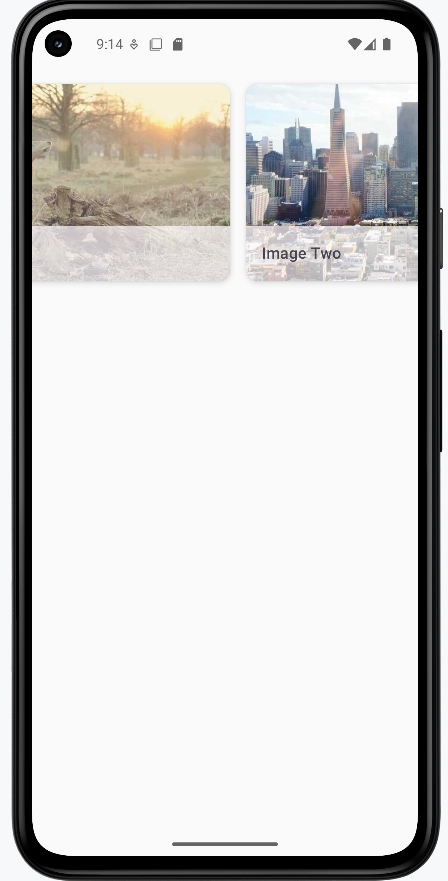
CarouselItem is a single card in the carousel: a fixed-size card (300×200 dp) with rounded corners. Inside, AsyncImage loads the image from image.imageUrl (using Coil) and fills the card; a semi-transparent Surface at the bottom shows the image.title. The full carousel uses a LazyRow and calls items(...) { image -> CarouselItem(image) } so only visible cards are composed; as you swipe horizontally, new items appear and off-screen ones are recycled. The dependency snippets (Coil in libs.versions.toml and build.gradle, INTERNET permission in the manifest) are required for loading images from the network.
We will be looking at coil and AsyncImage in more detail later in this book but for now you can just know that it is a way to load and display images from the network.
How this example renders
The screenshot shows the horizontal carousel: image cards with a title overlay at the bottom of each card. You swipe left or right to see more images; only the visible cards are composed, so scrolling stays smooth. The dependency snippets (Coil in libs.versions.toml and build.gradle, INTERNET in the manifest) are needed so images can load from the network. The full project is on my GitHub page—open the chapter8 lazyrow.kt file to run it.
Tips for Success
- Use LazyRow for horizontal scrollable lists
- Keep item layouts simple and efficient
- Use proper spacing between items
- Consider using snap scrolling for better UX
- Test with different screen sizes
Common Mistakes to Avoid
- Using LazyRow for short, static lists
- Creating complex layouts for each item
- Not handling empty states
- Forgetting to add proper spacing
- Not considering performance with large datasets
Best Practices
- Use appropriate item spacing
- Implement proper error handling
- Add loading states for data
- Consider accessibility
- Test scrolling performance