
DataStore for Simple Storage
What is DataStore?
DataStore is Android's modern way to save simple app settings and preferences. It permanently stores values like a user name, dark mode preference, font size, and notification toggle. When the app closes and opens again, those values are still there.
In this lesson, you are using Preferences DataStore, which stores key-value pairs in your app's private storage. That means your app can read and write the settings safely, and other apps cannot access them.
Those preferences are persisted on the device or emulator as a real file (not as a text file in your project folder). The name you pass to preferencesDataStore(name = "simple_preferences") determines the file DataStore uses. You can often show students that file in Android Studio; see Where the file lives and how to see it below.
Quick Reference Table
| Type | Description | Common Use |
|---|---|---|
Preferences DataStore |
Key-value storage for simple data | User settings, toggles, simple preferences |
Proto DataStore |
Type-safe storage using Protocol Buffers | Structured objects and more complex app state |
Required Dependencies
To use Preferences DataStore, make sure these entries exist:
gradle/libs.versions.toml
datastore = "1.0.0"
androidx-datastore-preferences = { group = "androidx.datastore", name = "datastore-preferences", version.ref = "datastore" }
app/build.gradle.kts
dependencies {
    implementation(libs.androidx.datastore.preferences)
}
Big Picture: How This App Works
This app has four important files, and each one has a specific job:
PreferencesManager.kt: reads/writes raw values in DataStoreDataStoreViewModel.kt: exposes those values asStateFlowfor UIDataStoreScreen.kt: displays settings and sends user actions to ViewModelMainActivity.kt: applies app theme and hosts the screen
When a user changes a setting, the data path is:
- User taps a control in
DataStoreScreen.kt(the Composable UI). - The screen calls a function on
DataStoreViewModel.kt(for exampleupdateDarkMode(...)). That function is not suspend, so it cannot block the UI thread. - The ViewModel starts a coroutine with
viewModelScope.launch { ... }and inside that coroutine callsPreferencesManager.kt. PreferencesManagerrunsdataStore.edit { ... }, which writes the new value to disk and makes DataStore emit a fresh preferences snapshot.- The
Flowthat reads dark mode inPreferencesManageremits the new boolean. The ViewModel had already turned that Flow intoStateFlowwithstateIn, sodarkModeupdates for all observers. - Compose screens that use
collectAsState()on thatStateFlowrecompose: text and switches show the new value, andMainActivity.ktcan rebuildMaterialThemeso colors actually change.
Example walkthrough
Suppose the user turns dark mode on.
Step 1 — DataStoreScreen.kt: the user acts, and the screen forwards the request
The settings screen has two jobs at once. First, it shows the latest values from the ViewModel so the switch and labels match what is saved. Second, when the user changes something, it tells the ViewModel to save the new value. For dark mode, the screen collects darkMode from the ViewModel and wires the switch so a tap calls updateDarkMode with the new on/off value (it).
val darkMode by viewModel.darkMode.collectAsState()

Switch(
    checked = darkMode,
    onCheckedChange = { viewModel.updateDarkMode(it) }
)
collectAsState() is how Compose listens to the ViewModel. When the value changes later (after DataStore updates), this line causes the screen to redraw so the switch and text stay correct. The Switch line does not save anything by itself; it only calls the ViewModel. Saving happens in the next steps.
Step 2 — DataStoreViewModel.kt: run the save off the UI thread
The function updateDarkMode(enabled) is written so the Composable can call it from a click handler without waiting. It uses viewModelScope.launch { ... } to start a coroutine: a piece of work that can run while the UI stays responsive. Inside the coroutine it calls preferencesManager.updateDarkMode(enabled), which actually talks to DataStore.
fun updateDarkMode(enabled: Boolean) {
    viewModelScope.launch {
        preferencesManager.updateDarkMode(enabled)
    }
}
viewModelScope is tied to the ViewModel's lifetime. If the user leaves the screen and the ViewModel is cleared, work started here is cancelled so you do not leave stray background tasks running. launch means "start this work; return right away from updateDarkMode" so the main thread is not blocked.
Step 3 — PreferencesManager.kt: keys, file, read path, and write path
This class is the only place that knows how DataStore is set up. It defines keys (like DARK_MODE) and gets a single DataStore instance via preferencesDataStore(name = "simple_preferences"), so all reads and writes go to one private file for this app on the device (see Where the file lives and how to see it for how to open that folder in Android Studio).
Reading uses dataStore.data, which is a Flow: whenever preferences change, a new snapshot is emitted. The code maps that snapshot to a boolean and supplies a default if the key was never set (?: false), so the first launch behaves predictably.
val darkMode: Flow<Boolean> = context.dataStore.data.map { preferences ->
    preferences[PreferencesKeys.DARK_MODE] ?: false
}
Writing uses dataStore.edit { ... }. That block is a small transaction: you get a mutable preferences object, set the key, and when the block ends DataStore commits the change safely. If several keys were updated in the same block, they would commit together. edit is a suspend function, so it can do I/O without blocking the UI thread when called from the coroutine the ViewModel started.
suspend fun updateDarkMode(enabled: Boolean) {
    context.dataStore.edit { preferences ->
        preferences[PreferencesKeys.DARK_MODE] = enabled
    }
}
After edit finishes, DataStore updates storage and dataStore.data emits again. That is how the “read” Flow learns the new value automatically; you do not call read and write as two separate manual steps in the UI.
Step 4 — DataStoreViewModel.kt again: from Flow to StateFlow
The PreferencesManager exposes darkMode as a Flow<Boolean>. Flows are great for storage, but the UI layer wants a value that always has a “current” setting and updates in one place. The ViewModel converts the Flow into StateFlow using stateIn(...): it collects the Flow in viewModelScope, uses SharingStarted.Lazily so collection starts when something needs it, and passes an initial value (here false) until DataStore delivers the first real read.
val darkMode: StateFlow<Boolean> = preferencesManager.darkMode.stateIn(
    viewModelScope,
    SharingStarted.Lazily,
    false
)
When step 3’s edit completes and the Flow emits, this StateFlow updates. Both DataStoreScreen and MainActivity observe the same StateFlow, so they stay in sync without duplicating DataStore code.
Step 5 — DataStoreScreen.kt and MainActivity.kt: the UI catches up
When the StateFlow updates, any Composable that used collectAsState() on viewModel.darkMode recomposes. In DataStoreScreen, the switch position and the “Dark Mode: Enabled/Disabled” text refresh.
MainActivity does the same collection for theme: it reads darkMode, picks darkColorScheme() or lightColorScheme(), and wraps the app in MaterialTheme(colorScheme = ...). That is what actually changes backgrounds and colors app-wide. The project also uses SideEffect with WindowCompat so status bar icons stay visible against light or dark backgrounds (import androidx.core.view.WindowCompat in the real file).
val viewModel: DataStoreViewModel = viewModel()
val darkMode by viewModel.darkMode.collectAsState()
val colorScheme = if (darkMode) darkColorScheme() else lightColorScheme()

SideEffect {
    WindowCompat.getInsetsController(window, window.decorView)
        .isAppearanceLightStatusBars = !darkMode
}

MaterialTheme(colorScheme = colorScheme) {
    DataStoreScreen(viewModel = viewModel)
}
Putting it together: step 1 sends the new boolean to the ViewModel; steps 2–3 persist it; step 4 pushes the new value through StateFlow; step 5 redraws the settings screen and the whole theme. One toggle both saves to disk and updates what you see.
Where the file lives and how to see it in Android Studio
When PreferencesManager calls dataStore.edit { ... }, DataStore updates a binary preferences file under your app’s private internal storage on the device or emulator. The file is not part of your source tree next to PreferencesManager.kt; it is created at runtime when the app first saves data.
For this demo, the delegate uses preferencesDataStore(name = "simple_preferences"). On disk, Preferences DataStore typically stores that as a file named like simple_preferences.preferences_pb inside a datastore folder under the app’s files directory.
To show students the file in Android Studio (use an emulator or a debuggable device for the simplest path):
- Install and run the app so it has written at least one preference.
- Open View → Tool Windows → Device File Explorer (or Device Explorer in some Android Studio versions).
- Select your emulator or device, then navigate to:
/data/data/<your.package.name>/files/datastore/(replace<your.package.name>with the app’s application ID, for examplecom.example.datastoredemo). - Look for
simple_preferences.preferences_pb(or a similarly named.preferences_pbfile). You can confirm the file exists and that its timestamp or size changes after you change settings in the app.
The file is not plain text (it is a protobuf-backed format), so you will not show students readable key-value lines inside it. The point of the demo is to prove that persistence is a real file on the device, not that you edit that file by hand. Browsing /data/data/... is easiest on the emulator; access on physical devices may be restricted.
What to Test in This App
- Change user name, font size, dark mode, and notifications
- Close the app fully
- Open the app again
- Verify all values are restored from DataStore
- Verify dark mode still controls the app color scheme after restart
- Optional: in Device File Explorer, open
.../files/datastore/simple_preferences.preferences_pband confirm the file exists after the app has saved settings
How this example renders
The snippets above summarize the main ideas. To view the full project, see the chapter11/DataStoreDemo app in the course examples repository.
Here is a screenshot of the app running:
Top and bottom of the application
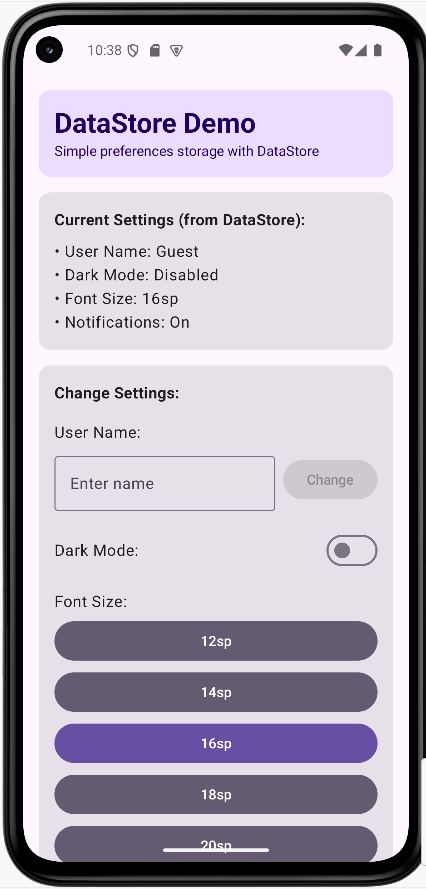
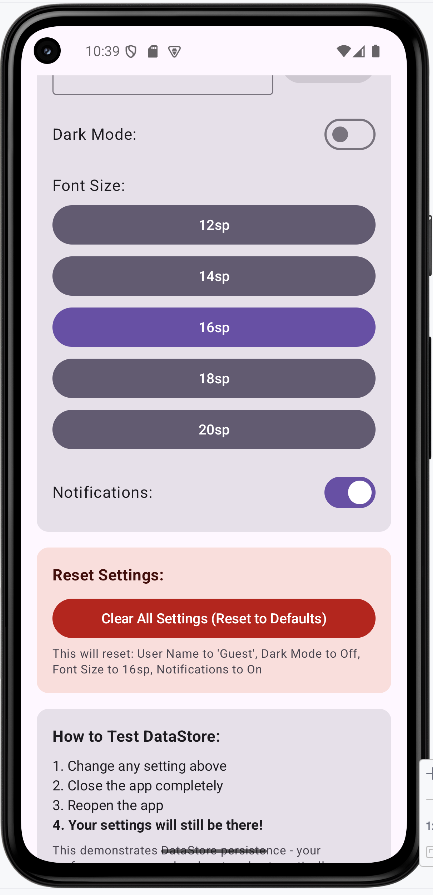
The app is running on a Pixel 7 Pro with Android 14.
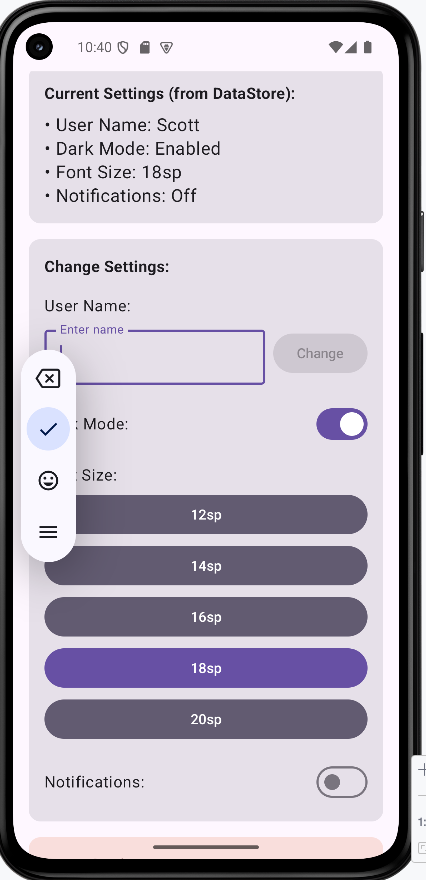
Application after the user has changed the settings (top part only)
Tips for Success
- Give every preference a clear key name
- Always provide defaults when reading values from DataStore
- Keep read/write logic in
PreferencesManager, not in Composables - Use ViewModel as the middle layer between storage and UI
- Use
collectAsState()so Compose updates automatically - Use Device File Explorer on an emulator to show that DataStore really creates a
.preferences_pbfile under the app’s private storage
Common Mistakes to Avoid
- Doing DataStore writes directly in UI code
- Forgetting defaults, which can create null/empty behavior surprises
- Treating dark mode as saved data but never applying it to
MaterialTheme - Creating multiple DataStore instances for the same file unnecessarily
- Trying to store complex relational data (use Room instead)
Best Practices
- Use DataStore for simple persistent settings
- Use Room for larger or relational data
- Keep each layer focused: Data layer, ViewModel layer, UI layer
- Name update functions clearly (
updateFontSize,updateDarkMode, etc.) - Test persistence by restarting the app after changing values